
Editing a video should not force you into a paid subscription. Plenty of free tools can handle trimming, captions, music, and export without adding a watermark to your final file. The key is knowing which tools are genuinely free, which limitations still apply, and how to build a simple workflow that produces a clean, publishable video.
In this guide, you will learn how to edit a video for free without a watermark, what to check before you export, and how to avoid the most common mistakes that lead to unwanted logos or low-quality files. If you want a fast browser-based option, the AI Video Editor is a practical place to start.
What Does "No Watermark" Really Mean?
A watermark is a logo, text, or badge that a video editor places on your exported file. Some tools add a small corner logo. Others overlay a large watermark across the center of the video. Watermarks usually appear in free plans as a way to encourage upgrades.
When people search for free video editing software no watermark, they usually want a tool that lets them export a clean final video without paying. Some free tools offer this. Others only remove the watermark after you buy a subscription. Before you choose a tool, check its export policy carefully so you do not spend hours editing and then discover the watermark is locked behind a paid plan.
The good news is that several browser-based and desktop editors export watermark-free videos for free, especially when you use their basic features. AI-powered tools are also making this easier by reducing the time needed for captions, cuts, and formatting.
What to Look for in a Free Video Editor
Before you start editing, compare tools based on the features you actually need.
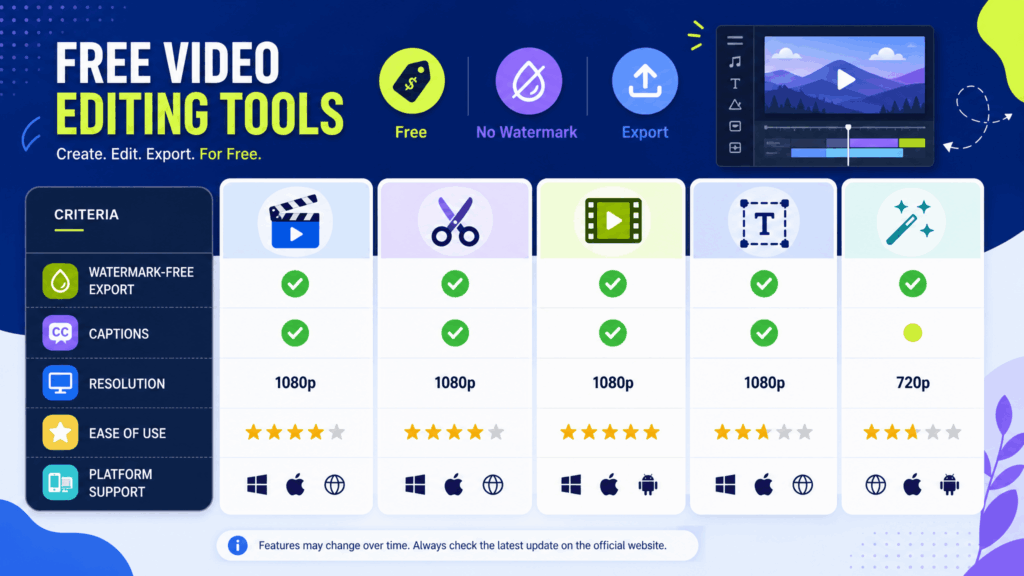
First, confirm that watermark-free export is included in the free tier. This is the most important requirement. Second, check resolution and export quality. Some free plans limit you to 720p, while others allow 1080p. Third, look at captions and text tools. Auto captions save a lot of time if you publish for social platforms. Fourth, consider the editing basics: trimming, splitting, transitions, music, and aspect ratios. Fifth, think about how easy the tool is to learn. A free tool you actually use is more valuable than a powerful tool you never open.
How to Edit a Video for Free Without a Watermark
You can complete a full edit with a simple four-step workflow.
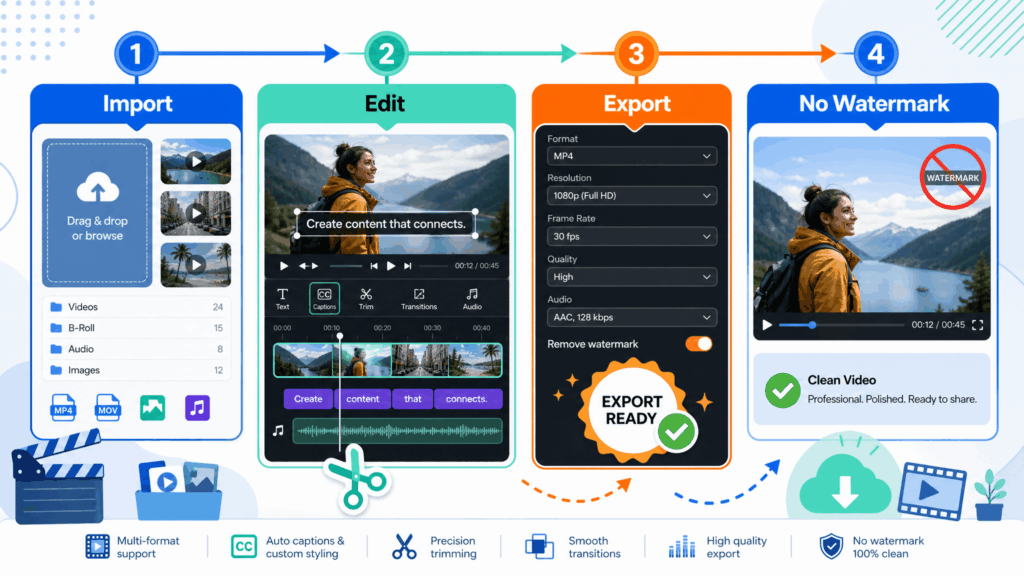
Step 1: Choose a Watermark-Free Editor
Pick a tool that exports clean videos on its free plan. Online editors are convenient because they work in the browser and need no installation. If you already use an AI-powered platform, an AI video editing tool can handle captions, cuts, and short-form formatting in one workflow.
Step 2: Import and Trim Your Footage
Upload your video or clips, then remove the parts you do not need. Cut long pauses, repeated ideas, and slow openings. Keep the strongest content and arrange it in a clear order.
Step 3: Add Captions, Music, and Text
Add captions so viewers can follow along without sound. Keep captions short and readable. Add music that matches the mood and adjust the volume so it does not cover dialogue or voiceover. If your video is for TikTok, Reels, or Shorts, format it as 9:16 vertical video.
Step 4: Export Without a Watermark
Choose your export settings, then download the final video. Check that no watermark appears on the preview. If a free tool places a logo on exports, look for another option or use a workflow that combines free tools.
Best Free Video Editing Options Without Watermark
Several types of free editors can produce watermark-free videos.
Browser-based editors are the easiest way to edit a video for free without a watermark. They require no installation, sync across devices, and usually include captions, trimming, and export in popular formats. An AI Video Editor fits this category well because it pairs editing basics with AI features for captions and short-form content.
Desktop editors can be powerful, but some free versions add watermarks or restrict export resolution. If you choose a desktop tool, read its free-plan terms before you commit.
Built-in platform tools from your phone or operating system can remove the need for a separate editor entirely. They are useful for simple trims, but limited for captions, text, and advanced formatting.
AI-assisted workflows combine free editing with AI features such as automatic captions, beat-synced cuts, and vertical export. This is especially helpful when you publish regularly to social platforms.
How to Edit Videos Without Watermark for YouTube, TikTok, and Shorts
Different platforms need different formats, but the core editing skills are the same.
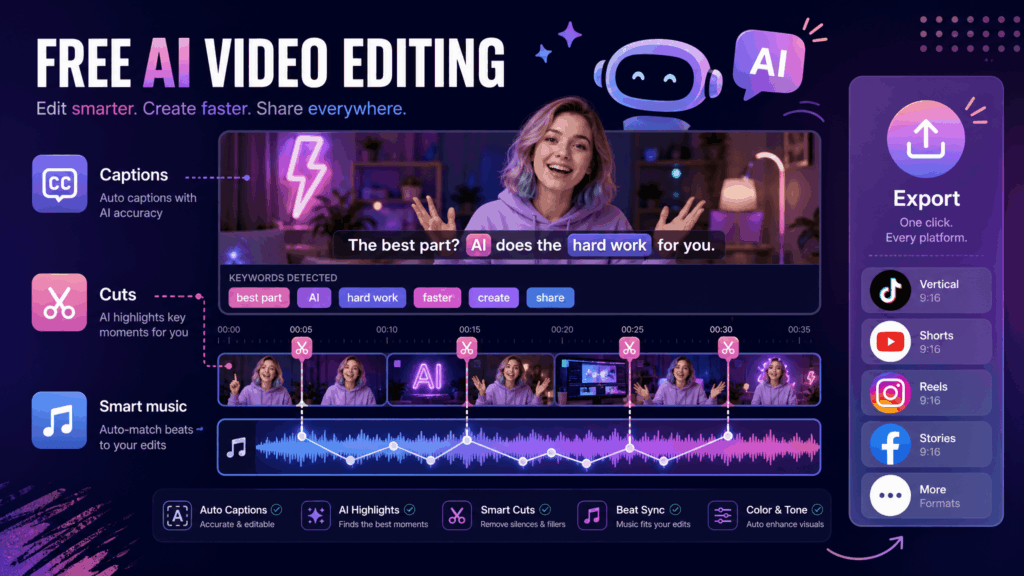
For YouTube, you can edit longer videos with intro, main content, and ending. Add chapters or titles if they help viewers navigate. Export in landscape or vertical depending on the video type.
For TikTok and Reels, use 9:16 vertical format, keep the hook in the first three seconds, and add captions that are easy to read on a phone. Fast pacing matters more than length.
For Shorts, keep the topic clear and the video short. A loopable ending can increase repeat views. Preview the final file on your phone before publishing to make sure captions and text are positioned correctly.
How to Make Your Free-Edited Video Look Professional
Free tools can still produce professional-looking results if you apply simple editing principles.
Use a strong hook in the first seconds. Viewers decide quickly whether to keep watching. Cut anything that slows the video down, including pauses and repeated sentences. Add captions that highlight key words instead of covering the screen with text. Match music to the mood and keep it under the voice track. Use transitions only when they help the story. Export in the highest resolution your free plan allows.
Common Mistakes When Editing Videos for Free
Many new editors run into the same problems.
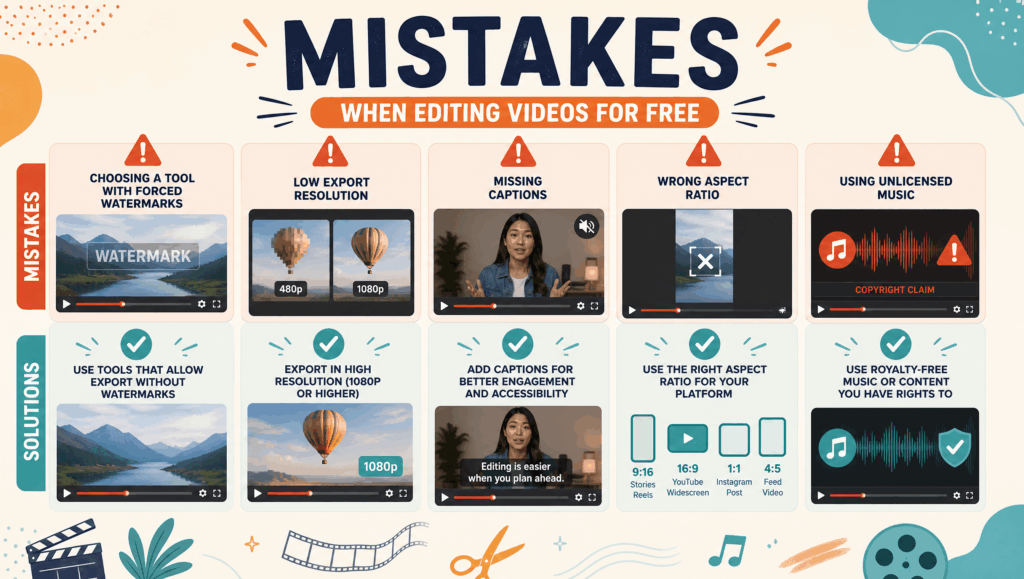
The most common mistake is choosing a tool without checking the export policy. You may finish the whole edit and then find a watermark on the download. Another mistake is exporting at low resolution. Some free plans silently limit quality, so always check the output settings. Ignoring captions is another problem, especially for social videos where many viewers watch without sound. Using the wrong aspect ratio can also make your video look unprofessional. Finally, avoid unlicensed music. Some free editors include music libraries, but if you add your own track, make sure you have permission to use it.
Is Free Video Editing Really Free?
Free editing usually comes with trade-offs, even when the export has no watermark. You may see ads, face upload or duration limits, lose access to advanced effects, or find fewer export options. That is normal. The question is whether the free version covers your actual workflow.
For most beginners and small creators, a free browser-based editor is enough for trimming, captions, basic text, and vertical export. As your needs grow, you can decide whether a paid upgrade is worth it. Starting with a watermark-free free tool lets you build the habit and the skill without paying upfront.
Conclusion
Learning how to edit a video for free without a watermark is a practical skill that saves money and time. The workflow is simple: choose a watermark-free editor, import and trim your footage, add captions and music, format for the platform, and export a clean final file.
You do not need expensive software to produce a watchable video. Start with a free tool, keep your edits focused, and review the export before publishing. If you want to speed up captions and short-form editing, try the AI Video Editor as part of your workflow. For more creator tools and resources, explore NoteGPT to support your video, audio, and content workflows.