


Short videos are no longer optional. TikTok, Instagram Reels, and YouTube Shorts dominate discovery feeds, and most creators publish in vertical 9:16 format. But editing a short video is not the same as trimming a long YouTube video. Every second matters, the first three seconds decide whether people stay, and captions often matter more than the footage itself.
The good news is that you do not need years of editing experience to make a short video look good. With the right workflow, you can turn raw clips into a polished TikTok, Reel, or Short in a fraction of the time it used to take. If you want to speed up short-form editing, an AI Video Editor can help you trim clips, add captions, adjust aspect ratios, and prepare videos for social platforms faster.
Why Short Video Editing Is Different
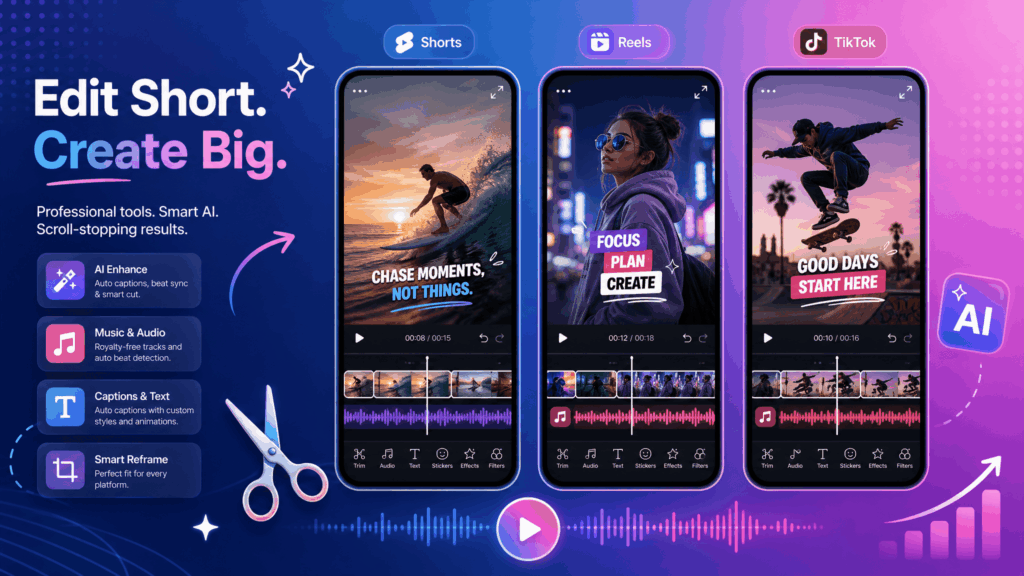
Editing a 30-second vertical video is a different skill from editing a 10-minute horizontal video. Short-form viewers scroll quickly, decide instantly, and reward content that feels fast, clear, and easy to watch on a phone.
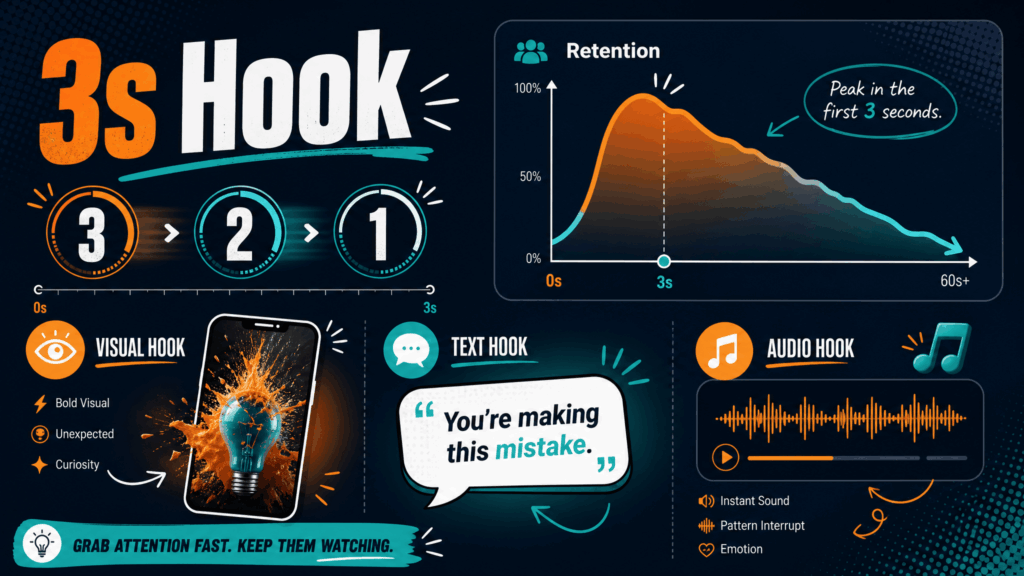
Viewers Decide in the First 3 Seconds
On TikTok, Reels, and Shorts, your first frames are your only chance to earn attention. If the opening is slow, vague, or visually flat, people swipe away. A strong hook should be immediate: a bold statement, a surprising visual, a question, or a dramatic action.
Vertical Format Changes the Composition
Short videos are usually watched full-screen on a phone. That means you should frame subjects in the center, keep important information away from the edges, and design for 9:16 instead of 16:9. If your source footage is horizontal, you may need to crop, reframe, or blur-fill the background.
Captions Are Almost Required
A large share of short videos are watched with the sound off. Auto captions help people follow along without audio. On top of that, text overlays can highlight key words and make the video easier to scan. If captions are hard to read, viewers leave.
Pacing Matters More Than Length
Short videos feel engaging when they move. Pauses, repeated words, and long transitions kill momentum. The goal is to keep the strongest content visible as long as possible and remove everything that slows the viewer down.
Step 1: Start with a Strong Hook
The hook is the first thing people see, so build it before you edit anything else. Decide what the viewer will see in the first second and what they will read or hear in the first three seconds.
Use a visual hook when the footage is striking. A fast zoom, a sudden color change, an unexpected object, or a dramatic close-up can stop the scroll. Use a text hook when the topic is clear. Patterns such as "Stop doing this...", "3 mistakes you keep making", or "Here is the fastest way..." work because they promise a specific payoff. Use an audio hook when sound is part of the video. A question, a sound effect, or a trend-adjacent music intro can pull people in.
The hook should match the platform. TikTok rewards fast and playful openings, Reels often suits polished lifestyle hooks, and Shorts tends to reward clear topic-first openings.
Step 2: Trim Everything That Slows the Video Down
Raw footage almost always contains extra material. Long pauses, repeated sentences, and slow transitions make a short video feel longer than it is. When you edit, cut with intention.
Cut long pauses first. If someone hesitates for two seconds, remove that space. Remove repeated ideas. If the same point appears twice, keep the stronger version. Keep only one main point per video. A short video that tries to explain five ideas usually fails at all of them. Use jump cuts carefully. A well-timed jump cut can add energy, but too many make the video feel choppy.
You can use an AI video editing tool to cut pauses, remove unnecessary sections, and shape raw footage into a tighter short video. Even a rough AI-assisted first cut gives you a faster starting point.
Step 3: Edit for the Right Platform Format
TikTok, Reels, and Shorts share the same vertical format, but each platform has its own rhythm and audience expectations.
For TikTok, keep the editing fast and native-looking. Captions that match the platform style, trend-aware pacing, and early hooks work well. For Instagram Reels, polished visuals matter. Lifestyle creators and brands usually benefit from cleaner color, music sync, and consistent aesthetics. For YouTube Shorts, topic clarity is important. Since Shorts often come from search or suggested feeds, the idea should be understandable quickly, with retention-driven pacing and a loopable ending.
Whatever platform you choose, keep text inside the safe zones. TikTok and Reels overlay UI elements such as buttons and captions at the bottom, so important titles should stay near the center. If you are repurposing one video across all three platforms, check the preview on each one before publishing.
Step 4: Add Captions and Text Overlays
Captions are one of the highest-impact edits you can make to a short video. They help silent viewers, reinforce the message, and make the content feel more professional.
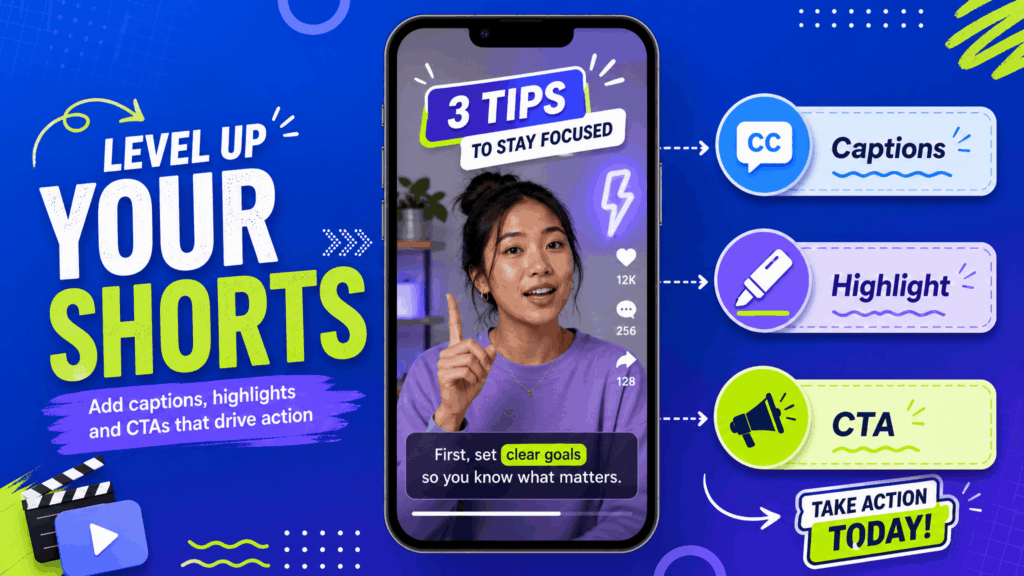
Keep captions short. One or two lines at a time is easier to read than a paragraph. Highlight key words. Make the most important phrase stand out with size, color, or emphasis. Match the caption style to the platform. Native-looking captions feel more authentic on TikTok and Shorts, while Reels often allows more designed text. Finally, place text where it is visible. Avoid the bottom fifth of the screen if platform UI may cover it.
If captions slow down your workflow, an AI Video Editor can help generate subtitles and text overlays for short videos more efficiently. You can then adjust the wording and style instead of creating every line from scratch.
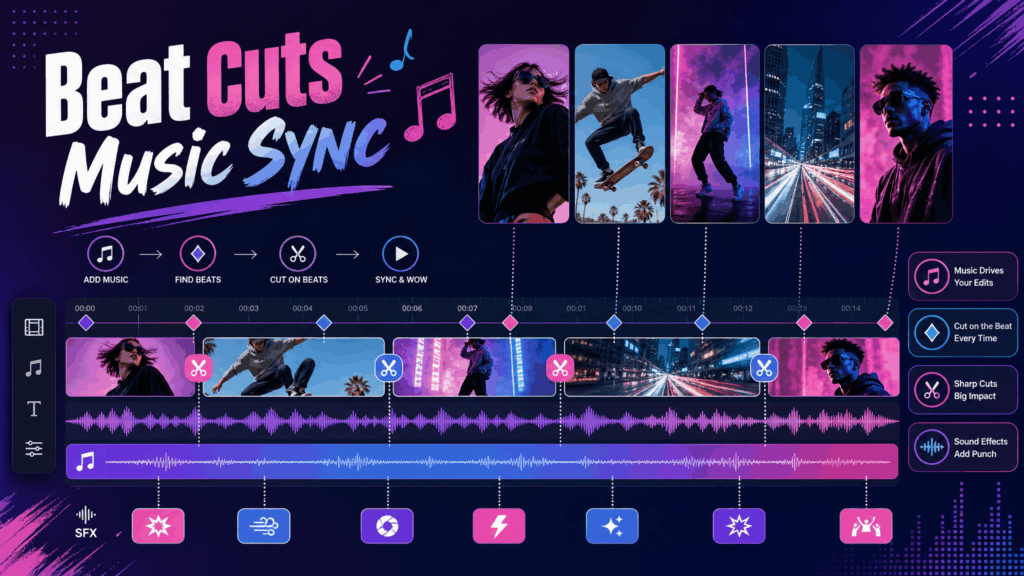
Step 5: Use Music, Sound Effects, and Beat Cuts
Sound is a core part of short video culture. Even videos watched without audio are often designed around a song or beat that viewers recognize.
Choose music that matches the mood. Upbeat music suits energetic content, while slower tracks work for storytelling or tutorials. Cut on the beat when possible. Aligning cuts with the rhythm makes the video feel intentional and satisfying. Use sound effects to emphasize actions, like a pop when text appears or a swoosh during a transition. Keep voice clear over music. If there is dialogue or a voiceover, lower the music level so the words stay easy to understand.
Step 6: Improve Retention with Visual Changes
A viewer is more likely to stay when the frame keeps changing. Visual variety does not mean random effects; it means giving the eye a reason to keep watching.
Add B-roll to support what is being said. A cooking video can cut from the speaker to the ingredients, and a travel video can show the location instead of a static face. Use zooms and push-ins to add energy to important moments. Switch angles or crops to create variety without re-filming. Add pattern interrupts such as a quick graphic, a color shift, or a fast insert when attention is likely to drop.
Step 7: Create a Loop or Clear Ending
The ending is the second most important moment after the hook. A weak ending can make viewers leave before they finish or skip the next video.
Try looping the final frame back to the beginning. This works especially well on Shorts because it encourages rewatching. End with a question to invite comments. Ask something simple like "Which one would you try?" or "What should I test next?" Add a simple CTA when it fits, but avoid long outro screens. A short video should end quickly and leave a reason to engage.
Step 8: Export Settings for TikTok, Reels, and Shorts
The final step is exporting a file that looks sharp on every phone. Use the settings that platforms recommend for vertical video.
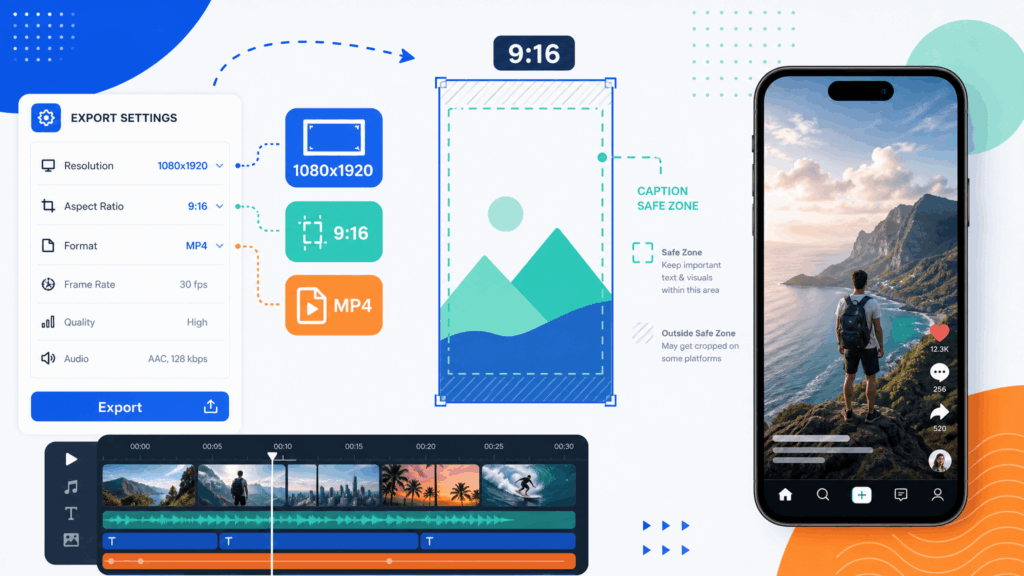
Aspect ratio should be 9:16. Resolution of 1080 x 1920 is the standard target. Keep the duration within the platform limit for the format you are using. Export as MP4 for the widest compatibility. Before publishing, preview the video on your phone. Check the captions, the beat alignment, the text position, and the first three seconds one more time.
When you edit a video online, check whether the tool supports vertical export, captions, music, and quick platform-ready rendering. These features turn a generic editing session into a repeatable short-form workflow.
Common Short Video Editing Mistakes
Many creators repeat the same editing mistakes. A weak first three seconds is the most common one. If the opening is slow, the rest of the video rarely gets seen. Too much text on screen is another problem. If viewers cannot read the captions quickly, they lose patience.
Slow pacing kills short videos. When a video feels dragged out, people scroll before the payoff. The wrong aspect ratio is another issue. A horizontal video uploaded as a vertical short looks unprofessional and wastes screen space. Music that is too loud can bury the voice, and a video with no clear ending often feels unfinished.
Short Video Editing Workflow for Beginners
If you are new to short video editing, use a simple repeatable workflow.
First, record or import your raw footage. Second, pick the best moment and build the hook first. Third, trim the footage around that moment and remove anything slow. Fourth, add captions and music, then adjust the pacing. Fifth, review the video on your phone before publishing.
This workflow keeps the process fast and focused. As you repeat it, you will start noticing what works for your audience and your platform.
Final Thoughts
Editing short videos for TikTok, Reels, and YouTube Shorts is about clarity, pace, and mobile-first viewing. A strong hook, tight cuts, readable captions, synced music, and correct export settings can make a huge difference, even when your footage is simple.
You do not need to master every professional editing feature to get started. Focus on the parts that viewers actually notice, then build a workflow you can repeat. If you want to learn more about improving your editing speed, you can explore related guides and creator resources on NoteGPT to support your video and content workflows.