

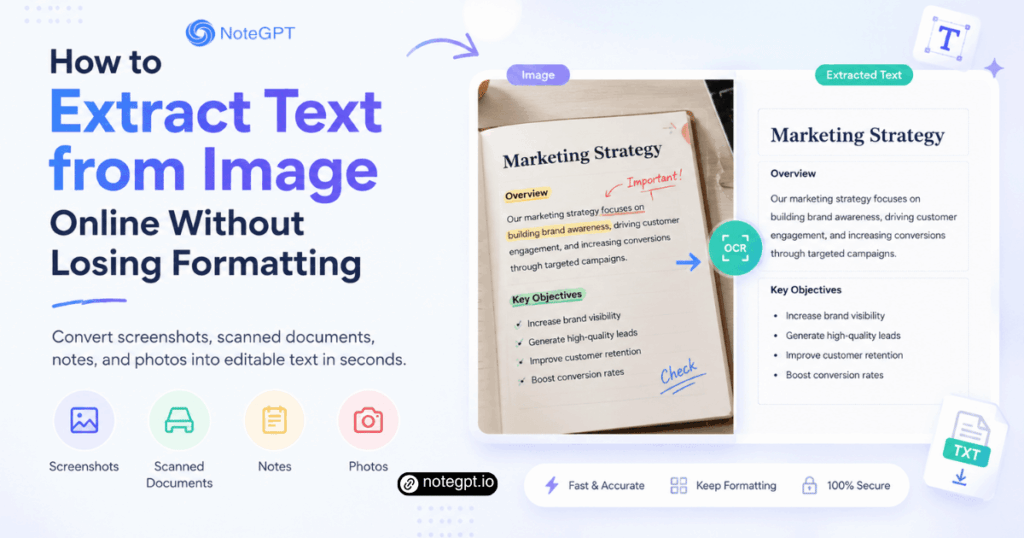
Trying to copy text from a screenshot, scanned document, receipt, lecture slide, or photo can be frustrating. The words are clearly visible, but they are trapped inside an image. You cannot select them, search them, edit them, or paste them into your notes. That is where OCR comes in. OCR, short for optical character recognition, turns image-based text into editable digital text.
The challenge is not only how to extract text from image files. The bigger challenge is how to keep the result clean. Many OCR tools can recognize words, but the output may lose paragraph breaks, merge columns, break bullet lists, or scramble tables. If you need a fast and practical workflow, an Image to Text Converter can help you turn screenshots, scanned documents, handwritten notes, and photos into editable text online.
Why Extracting Text from Images Is Harder Than It Looks
At first, image to text conversion sounds simple: upload an image and copy the text. In reality, the OCR tool must understand much more than individual letters. It has to detect where the text begins, where a line ends, how paragraphs are separated, whether the content is arranged in columns, and which characters belong together.
An image is not a document. It is a grid of pixels. Even if a page looks clean to your eyes, OCR software must identify shapes, compare them with possible characters, and reconstruct the text structure. This becomes harder when the image is blurry, tilted, compressed, shadowed, handwritten, or filled with background noise.
Formatting is another problem. A screenshot may contain headings, buttons, captions, tables, menus, and body text at the same time. A scanned document may include footnotes, signatures, stamps, and page numbers. A photo of a notebook may have curved lines or uneven lighting. To preserve formatting, the OCR system needs to recognize layout as well as text.
The Best Way to Extract Text from Image Online
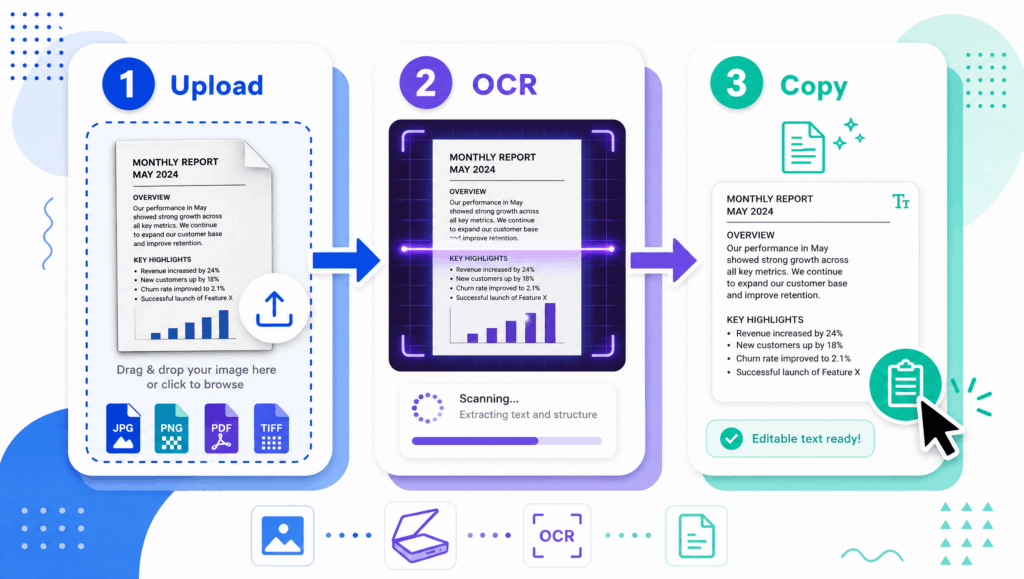
The easiest way to extract text from image online is to use a browser-based OCR tool. You do not need to install software, scan a document again, or manually retype every word. A good online OCR workflow usually has four steps: upload the image, let the OCR engine detect text, review the output, and copy or save the editable result.
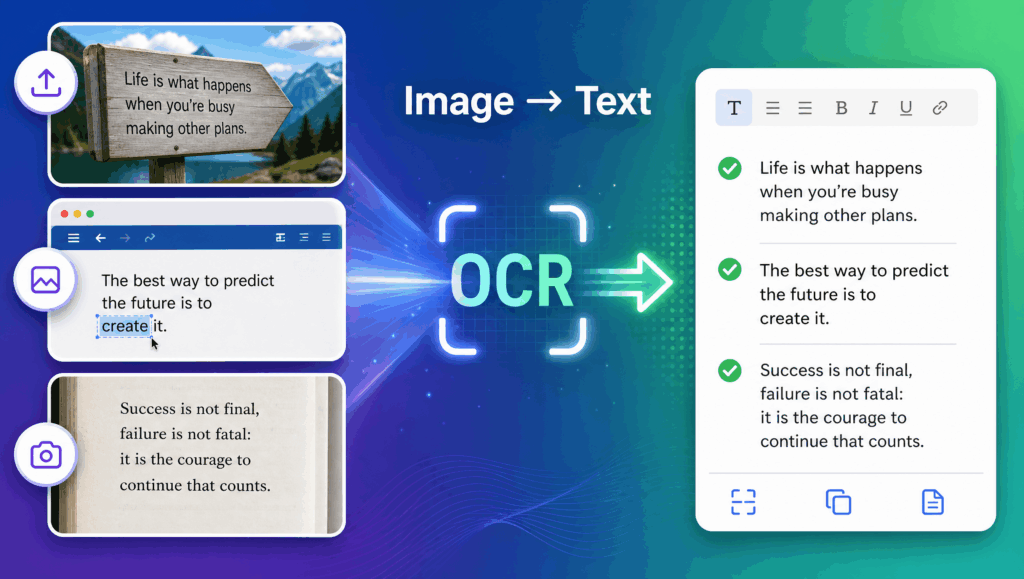
For everyday tasks, the Image to Text Converter is useful because it focuses on speed and accessibility. You can use it for screenshots, scanned pages, photos of notes, product labels, and other image-based text. Instead of typing manually, you upload the image and let OCR identify the words automatically.
This type of tool is especially helpful when you need editable text quickly. Students can turn lecture screenshots into notes. Office workers can copy text from scanned forms. Researchers can extract quotations from paper scans. Creators can repurpose text from visual content. The key is to start with a clear image and then review the extracted text before using it in a final document.
Step-by-Step Guide: How to Extract Text from Image Without Losing Formatting
Step 1: Choose a Clear Image
Image quality is the foundation of OCR accuracy. Use the sharpest version available. If you are taking a photo, make sure the text is well lit, the camera is steady, and the page is as flat as possible. Avoid strong shadows, reflections, and extreme angles. High contrast between text and background usually improves results.
Step 2: Crop Unnecessary Background
Before uploading, remove irrelevant areas such as desk surfaces, browser tabs, large blank margins, or unrelated images. Cropping helps the OCR tool focus on the actual text. However, do not crop too tightly. If you cut off headings, table lines, or paragraph edges, the tool may struggle to understand the layout.
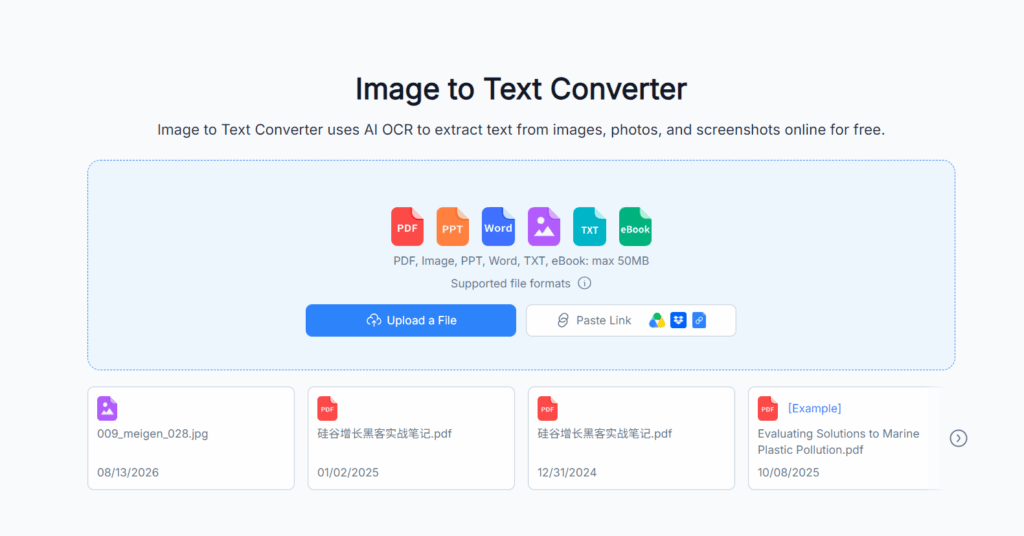
Step 3: Upload the Image to an OCR Tool
Upload your screenshot, scanned document, or photo to the Image to Text Converter. The OCR engine will analyze the image, detect text regions, and convert the recognized content into editable text. NoteGPT is much faster than manual typing, especially for long documents or multi-line screenshots.
Step 4: Review the Extracted Text
Even strong OCR results should be reviewed. Check names, numbers, punctuation, email addresses, prices, dates, and technical terms. These details are often the most important and the easiest to misread. If the image contains multiple columns, confirm that the reading order is correct.
Step 5: Restore Formatting When Needed
Basic formatting such as line breaks and paragraphs can often be preserved, but complex layouts may need light cleanup. For example, tables may require manual alignment, bullet lists may need spacing adjustments, and double-column documents may need reordering. The goal is not to expect perfect formatting from every image, but to reduce the work from full retyping to quick editing.
Common Image Types You Can Convert to Text
Screenshots
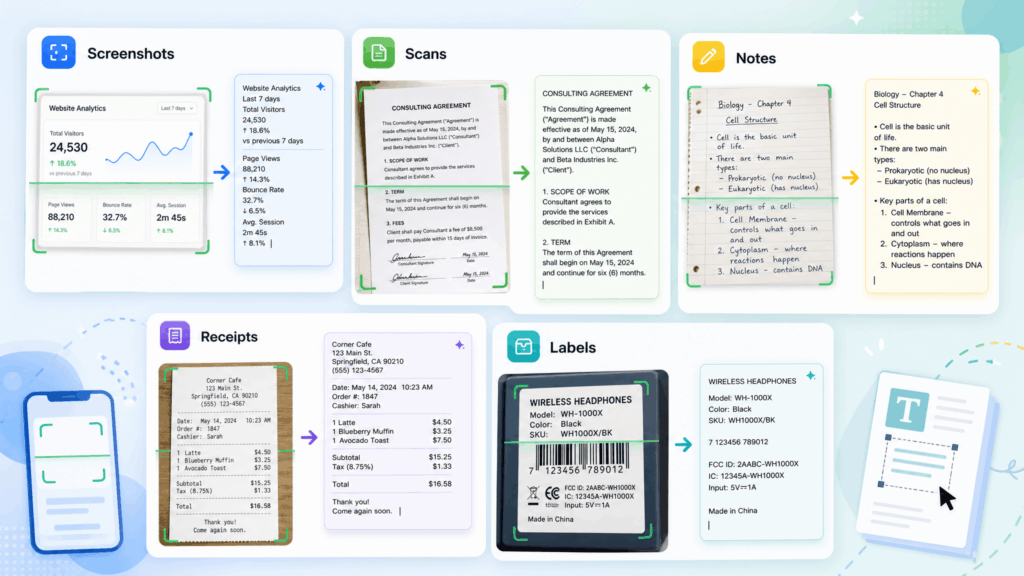
Screenshots are one of the most common sources for OCR. You may want to copy text from a webinar slide, a social media post, a chat message, a tutorial, an error message, or a web page that does not allow text selection. OCR lets you turn those visual snippets into editable notes or searchable records.
Scanned Documents
Scanned contracts, reports, forms, and printed pages often exist as image-based files. You can read them, but you cannot edit or search them easily. OCR makes the text usable again. This is helpful for archiving documents, preparing summaries, or moving information into a digital workspace.
Photos of Notes
Students and professionals often take photos of whiteboards, notebooks, meeting notes, or classroom materials. An image to text workflow helps convert those photos into organized study notes or action items. For best results, take the photo from above, avoid shadows, and make sure the handwriting or printed text is large enough.
Receipts and Invoices
Receipts and invoices contain important details such as dates, vendor names, prices, tax amounts, and order numbers. OCR can reduce manual data entry when organizing expenses or business records. Always double-check numbers because small recognition errors can affect financial accuracy.
Product Labels and Manuals
Ecommerce teams, researchers, and consumers may need to extract text from product packaging, ingredient labels, instruction manuals, or warning stickers. Converting these images to text makes it easier to compare specifications, translate content, or create product descriptions.
How to Keep Formatting Clean After OCR
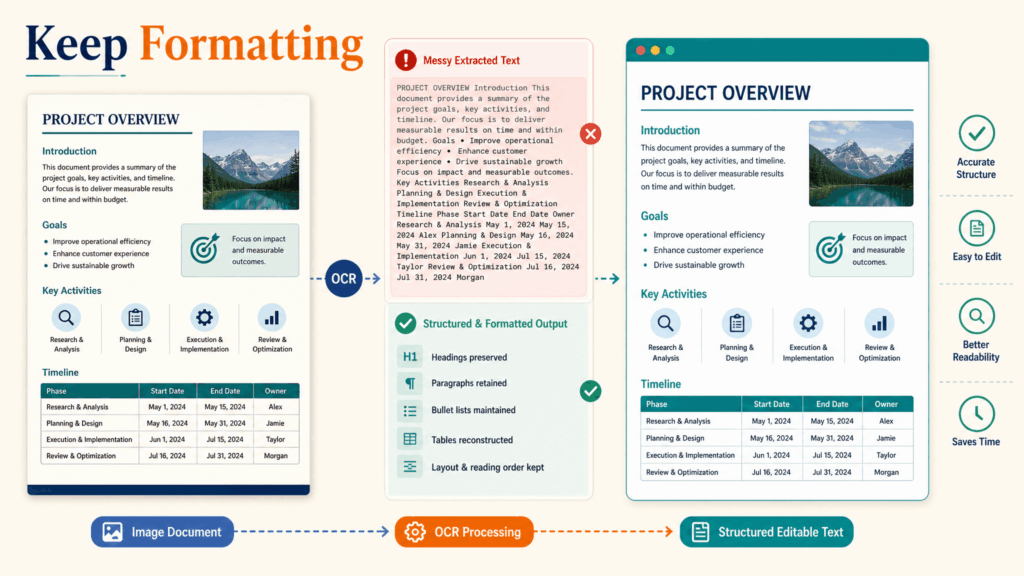
If your goal is to extract text from image without losing formatting, preparation matters. OCR works best when the visual structure is simple and clear. A clean image helps the tool preserve line order, paragraph breaks, and spacing.
First, use high-contrast images. Black text on a white background is easier to process than gray text on a patterned background. Second, keep text lines straight. If a page is tilted or photographed at an angle, OCR may misread letters or merge lines. Third, avoid excessive compression. A blurry screenshot or low-quality photo can make similar characters harder to distinguish.
After conversion, paste the extracted text into a plain text editor first if the formatting looks strange. This can remove hidden styles from copied content. Then rebuild headings, bullet points, and tables in your final document. For complex layouts, compare the output with the original image section by section.
Online OCR vs Manual Typing
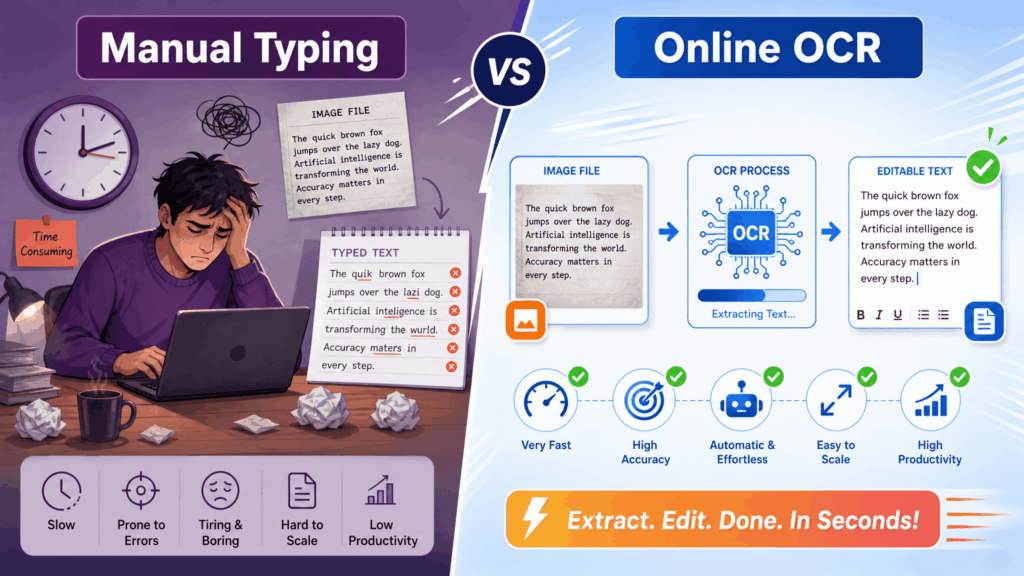
Manual typing still has one advantage: a careful human can understand context. However, it is slow and easy to get wrong when the image contains long paragraphs, numbers, or repetitive fields. Online OCR is much faster for most everyday use cases.
For a short quote, manual typing may be fine. For a full page, a scanned handout, a long screenshot, or multiple receipts, OCR saves time immediately. The best workflow is often a combination: use OCR to extract the first draft, then manually review and polish the text. This gives you speed without sacrificing accuracy.
Online OCR is also convenient because it works across devices. You can upload an image from a desktop, laptop, tablet, or phone. That makes it useful in classrooms, offices, libraries, meetings, and remote work situations.
Best Use Cases for Extracting Text from Images
For students, OCR can turn lecture screenshots, textbook photos, and whiteboard images into editable notes. Once the text is extracted, it can be summarized, searched, translated, or added to a study guide.
For teams, OCR can speed up document digitization. Instead of retyping printed reports, scanned forms, or meeting materials, users can extract text and move it into shared documents or project management tools.
For content creators, image to text conversion helps repurpose content from visuals. A creator might extract captions from screenshots, quotes from slides, or product information from photos, then adapt that material into blog posts, scripts, newsletters, or social content.
For researchers, OCR makes scanned materials easier to search and cite. Instead of manually typing long passages, researchers can extract text, verify it, and organize it with their notes.
When Should You Use an Image to Text Converter?
Use an image to text converter whenever the text you need is visible but not selectable. This includes screenshots, photos, scanned pages, receipts, diagrams with labels, or image-based PDFs. It is especially useful when you need editable text quickly or when manual typing would take too long.
You should also use OCR when accuracy matters but time is limited. Extract the text first, then review important details. This is more efficient than starting from a blank page. For repeated tasks, such as converting weekly meeting screenshots or monthly receipts, the time savings add up quickly.
Final Thoughts
Extracting text from images is now a basic productivity skill. Whether you are working with screenshots, scanned documents, study notes, receipts, or product labels, OCR can help you turn visual information into editable text. The key to better results is simple: start with a clear image, crop carefully, use a reliable OCR tool, and review the output before publishing or sharing it.
If you want a quick way to extract text from image online, try the Image to Text Converter. It helps convert image-based text into editable content, so you can spend less time retyping and more time using the information.