

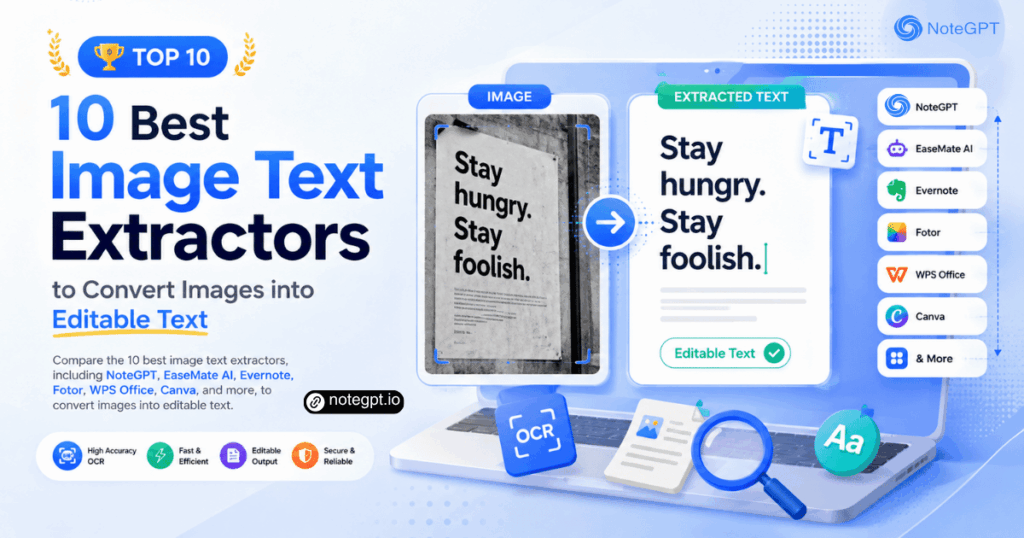
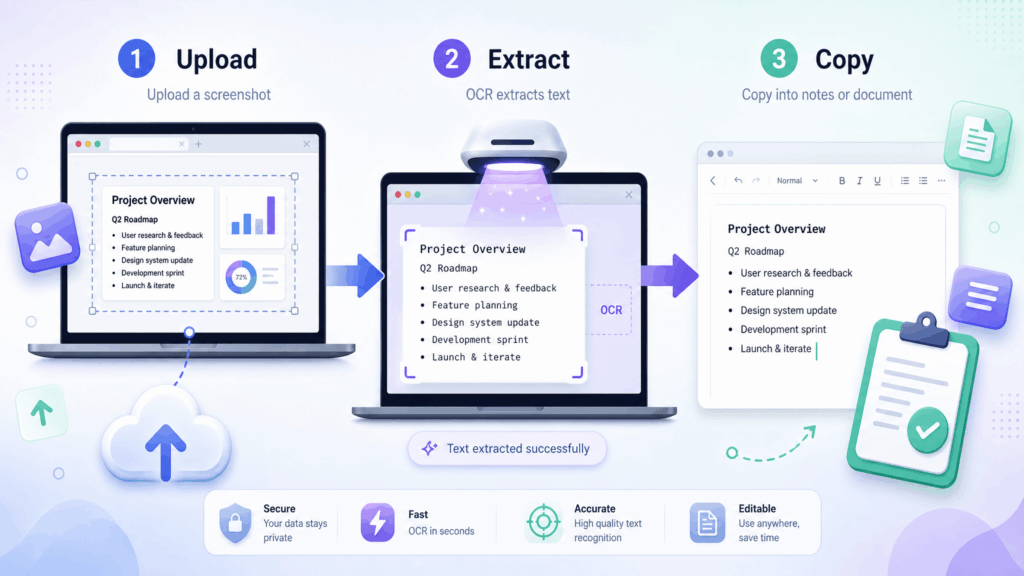
An image text extractor helps you turn words trapped inside screenshots, scanned pages, receipts, product labels, lecture slides, and photos into editable text. Instead of retyping everything by hand, you can upload an image, let OCR detect the text, and copy the result into your notes, documents, spreadsheets, or translation workflow.
But not every image text extractor is built for the same job. Some tools are designed for quick online OCR. Some work best inside a note-taking system. Some are better for office documents, design workflows, translation, or file conversion. To help you choose the right option, we compared 10 popular tools: NoteGPT, EaseMate AI, Evernote, Fotor, WPS Office, FreeConvert, OCR.Best, Canva, OpenL Translate, and DNS Checker.
If you want a fast browser-based option, NoteGPT's Image to Text Converter is a simple place to start. For a broader comparison, here is how all 10 tools fit different OCR needs.
What Is an Image Text Extractor?
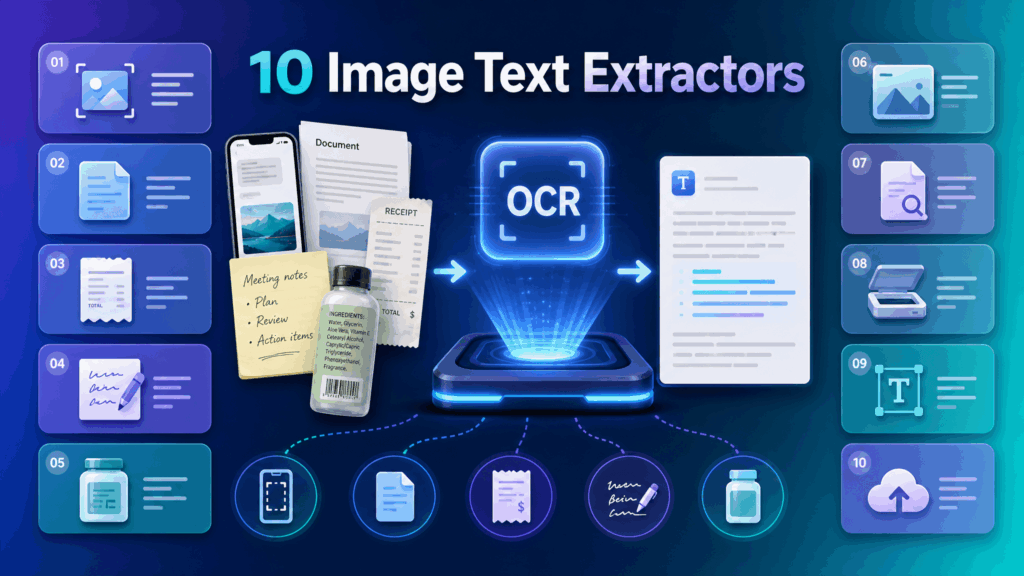
An image text extractor is a tool that uses OCR, or optical character recognition, to identify text inside an image and convert it into editable digital text. Modern tools may also use AI to improve recognition, understand layout, clean up formatting, or support extra workflows such as translation and document editing.
People use image text extractors for many everyday tasks. A student may copy text from a lecture screenshot. An office worker may extract information from a scanned invoice. A researcher may pull quotes from a scanned book page. A marketer may reuse copy from a product label. A traveler may extract and translate a foreign-language sign. The best tool depends on what you need to do after the text is extracted.
How We Chose the Best Image Text Extractor Tools
To compare these tools fairly, we looked at five practical factors.
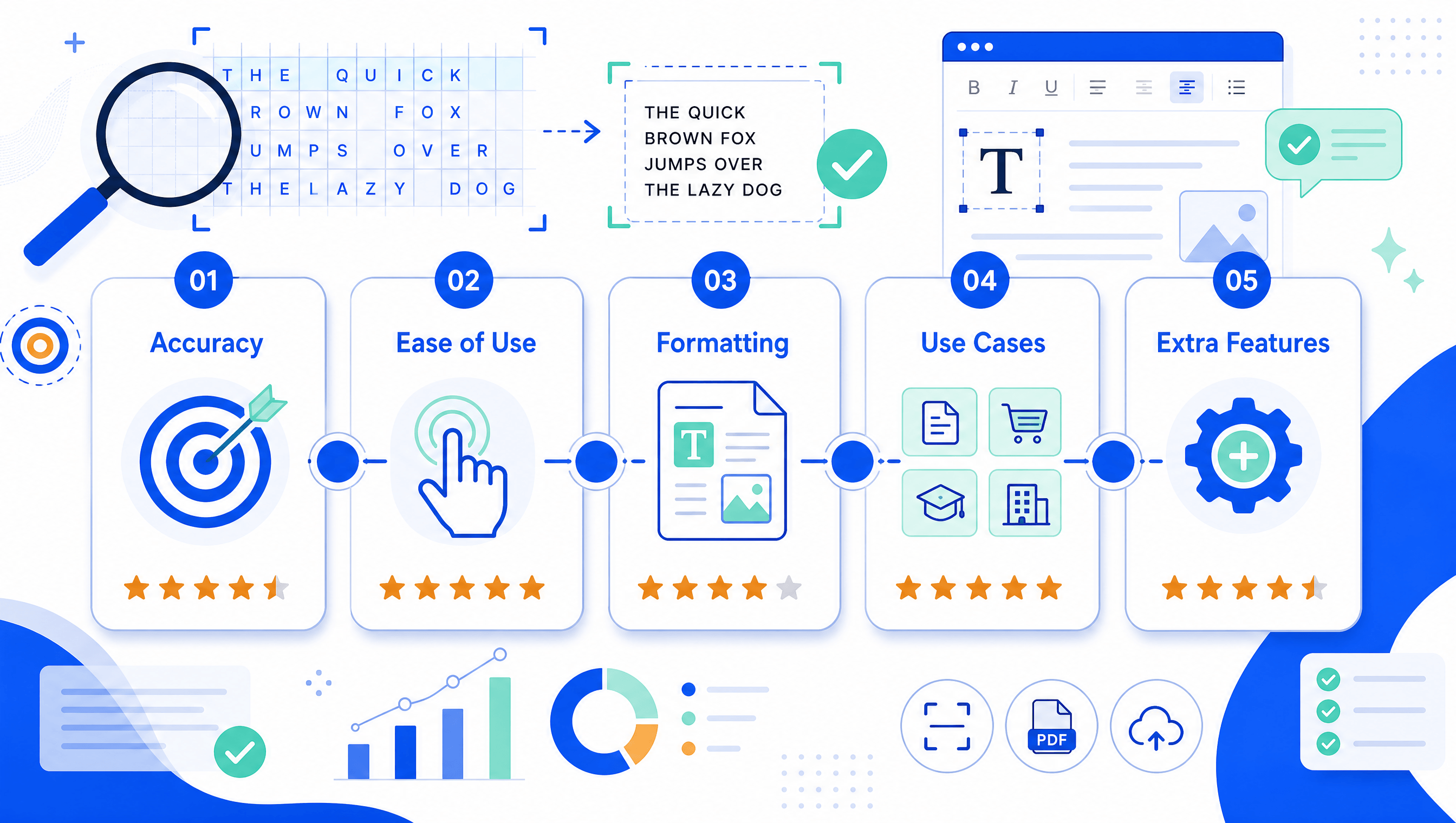
First, OCR accuracy matters most. A tool should recognize printed text, numbers, symbols, and common document layouts as reliably as possible. Second, ease of use matters because many users need a quick upload-and-copy workflow, not a complicated setup. Third, formatting preservation is important when extracting paragraphs, lists, tables, or structured documents. Fourth, supported use cases help determine whether a tool is better for screenshots, scanned documents, notes, images, product labels, or PDFs. Fifth, extra features such as translation, editing, note organization, or file conversion can make a tool more useful for specific users.
1. NoteGPT Image to Text Converter
NoteGPT is the best starting point for users who want a fast online image text extractor without installing software. Its Image to Text Converter is designed for everyday OCR tasks such as screenshots, scanned pages, study notes, document photos, and images with selectable-looking but uncopyable text.
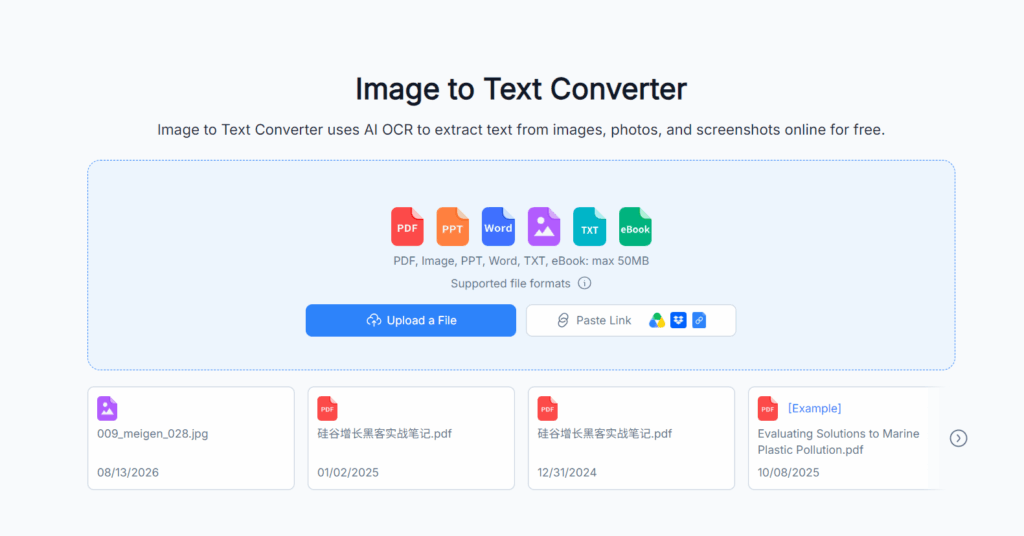
The main advantage is simplicity. You upload an image, let OCR detect the text, and copy the editable result. That makes it useful for students, office workers, researchers, and creators who need speed more than a complex enterprise OCR setup.
Best for: quick online OCR for screenshots, photos, and scanned pages. Pros: easy to use, browser-based, no installation required, suitable for daily text extraction. Cons: very complex tables or messy handwriting may still need manual review. Best use case: choose NoteGPT when you need to turn an image into editable text quickly and continue working in your notes, document editor, or content workflow.
2. EaseMate AI
EaseMate AI is a good fit for users who want image text extraction as part of a broader AI productivity experience. Instead of thinking only about OCR, users may want an AI-assisted workflow that helps them recognize, process, or repurpose extracted text.
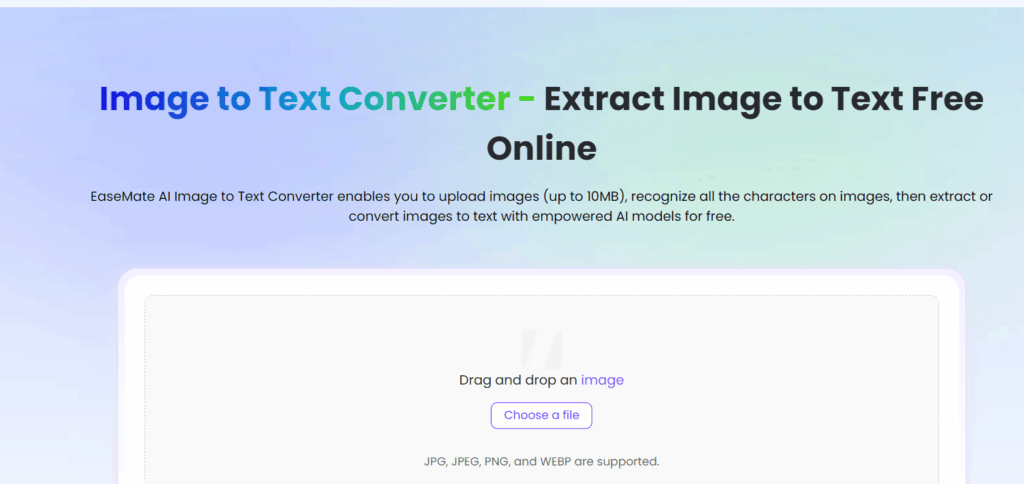
This makes EaseMate AI useful for everyday productivity tasks such as converting screenshots into notes, extracting content from images, or preparing text for rewriting and summarization. It may be more tool-heavy than a simple online OCR page, but that can be an advantage if you want extra AI assistance.
Best for: AI-assisted OCR and productivity workflows. Pros: useful for users who want AI support beyond basic extraction. Cons: may feel broader than necessary if you only need quick copy-and-paste OCR. Best use case: choose EaseMate AI when image text extraction is part of a larger AI writing, learning, or productivity workflow.
3. Evernote
Evernote is not just an OCR tool. It is a note-taking and knowledge management platform that can make text inside images searchable. This is especially useful if you store many scanned notes, whiteboard photos, receipts, research images, or meeting materials in one workspace.
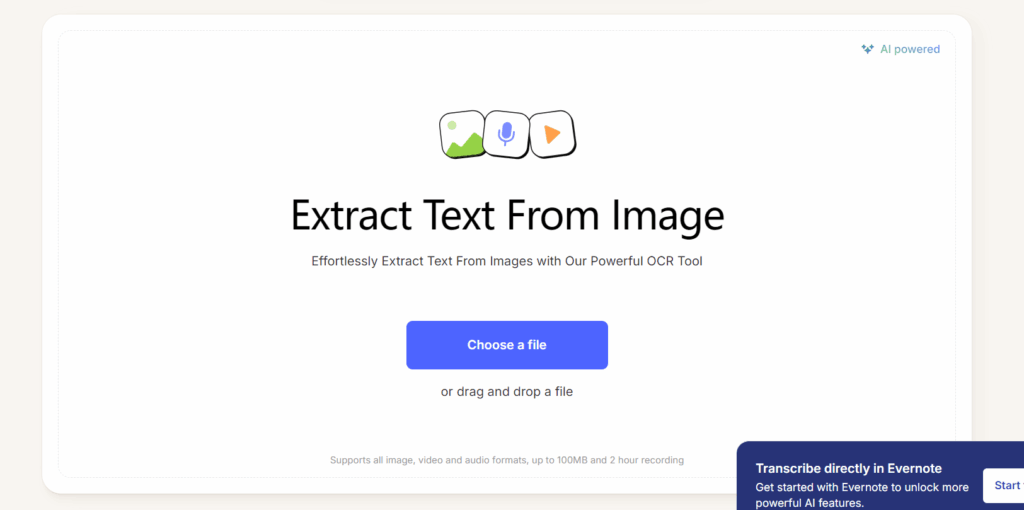
Evernote works best when your goal is long-term organization rather than instant extraction. If you already use Evernote to manage study notes or research archives, OCR can help you find information hidden inside image-based notes. However, it may not be the fastest option when you only want to upload an image and immediately copy the extracted text.
Best for: searchable image notes and long-term knowledge organization. Pros: strong note organization, useful for students and researchers, helpful for archives. Cons: less ideal for instant browser-based text extraction. Best use case: choose Evernote when you want image text recognition inside a note-taking system.
4. Fotor
Fotor is better known as an image editing and design tool, but it can also support workflows where users need to handle text inside visual assets. For marketers, creators, and designers, the key benefit is that image text extraction can sit close to image editing.
This makes Fotor useful when you are working with posters, social media images, product visuals, or marketing materials. If your task is purely to extract text from a scanned document, a dedicated OCR tool may be simpler. But if you are editing visuals and reusing text from them, Fotor can fit naturally into the creative process.
Best for: creators working with image-heavy content. Pros: useful for visual workflows, good fit for marketing and creative teams. Cons: not primarily built as an OCR-first tool. Best use case: choose Fotor when text extraction is connected to image editing or creative content production.
5. WPS Office
WPS Office is a strong choice for users who handle office documents, PDFs, and scanned files. Unlike lightweight online OCR tools, WPS Office fits into a broader document productivity environment. That makes it useful for users who want to extract text and then continue editing, formatting, exporting, or managing files.
For office workers, students, and administrative teams, WPS Office can be helpful when OCR is part of document processing. It may be heavier than necessary for a quick screenshot, but it makes sense for PDF-related OCR, scanned paperwork, or regular office document workflows.
Best for: office documents, PDFs, and scanned files. Pros: strong productivity ecosystem, useful for document editing and PDF workflows. Cons: may require app installation or account-based features. Best use case: choose WPS Office when OCR is connected to document editing and office productivity.
6. FreeConvert
FreeConvert is an online file conversion platform that can be useful when OCR is one step in a broader file conversion process. Users who regularly convert files between formats may find it convenient to keep OCR inside the same general tool environment.
The advantage is flexibility. If you are working with many file types, FreeConvert can be helpful. The trade-off is that it is not always as focused as a dedicated image text extractor. For simple OCR, it can still work well, especially when you want a browser-based tool and do not need a full document management system.
Best for: users who need OCR plus file conversion. Pros: online access, broad conversion focus, convenient for mixed file workflows. Cons: OCR is one function among many, not necessarily the central experience. Best use case: choose FreeConvert when you need image text extraction alongside other format conversions.
7. OCR.Best
OCR.Best is positioned as a simple online OCR option for extracting text from images. Its value is straightforward: if you need to recognize text in an image without entering a complex platform, a dedicated OCR tool can be enough.
This type of tool works best for users with occasional OCR needs. For example, you may have a screenshot, receipt, or small scanned page and need the text quickly. It may not offer the broader workflows of note-taking platforms, office suites, or design tools, but simplicity is the point.
Best for: basic online OCR tasks. Pros: straightforward purpose, easy to understand, useful for quick extraction. Cons: may lack advanced editing, organization, or workflow features. Best use case: choose OCR.Best when you want a dedicated image text extractor for simple one-off tasks.
8. Canva
Canva is mainly a design platform, but it can be relevant for users who work with text inside visual content. Designers, marketers, social media managers, and content creators often need to reuse text from graphics, ads, posters, screenshots, or brand materials.
Canva is not the most direct choice if your only goal is OCR. However, if image text extraction is part of a design workflow, it can be useful to stay within a creative platform. For example, you may extract or recreate text from an image and then use it in a new social post, presentation, or marketing asset.
Best for: design and social content workflows. Pros: strong creative ecosystem, useful for visual content teams. Cons: not primarily an OCR-first platform. Best use case: choose Canva when text extraction supports a larger design or content creation task.
9. OpenL Translate
OpenL Translate is a strong option when image text extraction connects to translation. Many OCR tasks are not just about copying text; they are about understanding foreign-language content. Users may need to extract text from a menu, travel sign, manual, screenshot, product label, or document in another language.
This makes OpenL Translate especially useful for students, travelers, international teams, and multilingual researchers. If your goal is to preserve formatting or process business documents, another OCR-focused tool may be better. But if translation is part of the workflow, OpenL Translate has a clear advantage.
Best for: extracting and translating text from images. Pros: useful for multilingual content, good for travel and global workflows. Cons: less focused on formatting-heavy document extraction. Best use case: choose OpenL Translate when you need to understand image-based text in another language.
10. DNS Checker
DNS Checker is better known as a collection of lightweight web utilities, but it can also fit users who need quick access to simple online tools. As an image text extractor option, it is best for occasional, lightweight OCR tasks rather than advanced document processing.
The benefit is convenience. If you only need to extract text from an image once in a while, a simple web utility may be enough. For repeated OCR, heavy documents, or structured formatting, a more specialized tool may be a better choice.
Best for: casual and occasional online OCR. Pros: lightweight, web-based, convenient for quick tasks. Cons: limited compared with dedicated OCR, office, or AI productivity tools. Best use case: choose DNS Checker when you need a quick utility-style image text extraction option.
Image Text Extractor Use Cases: Which Tool Fits Best?
Different users need different OCR workflows.
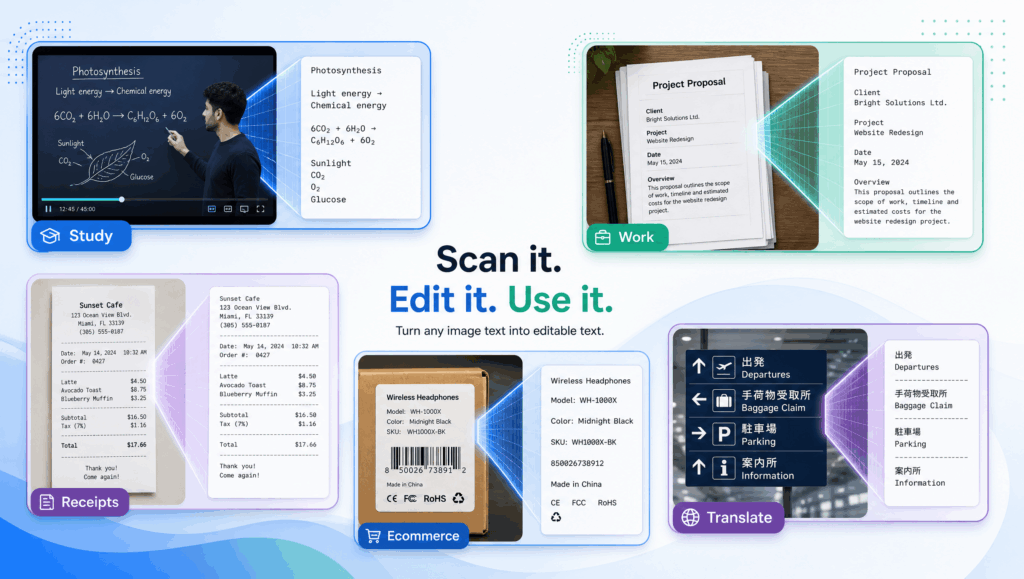
For students, NoteGPT and Evernote are strong choices. NoteGPT is better for quick extraction, while Evernote is better for long-term note organization. For office documents, WPS Office is a practical fit because OCR connects to document editing and PDF workflows. For creators, Canva and Fotor make sense when text extraction is part of design production. For translation, OpenL Translate is the most relevant. For file conversion, FreeConvert is useful. For simple one-time OCR, OCR.Best and DNS Checker can be enough.
Final Recommendations
If you want the best overall image text extractor for quick online use, start with NoteGPT's Image to Text Converter. It is simple, browser-based, and suitable for common OCR tasks such as screenshots, scanned pages, notes, and photos.
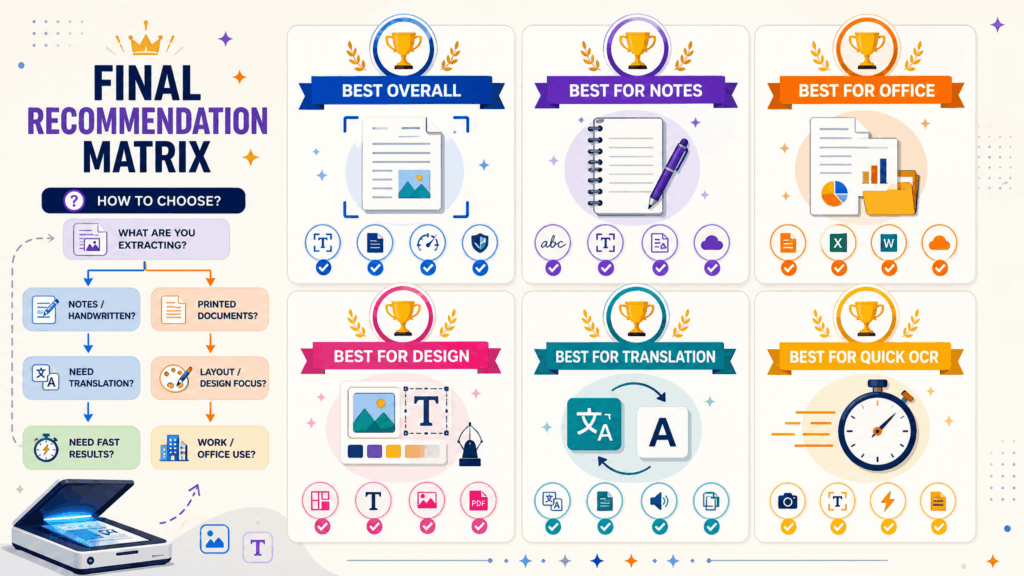
If you want AI productivity support, try EaseMate AI. If you want searchable notes, use Evernote. If your work centers on office documents and PDFs, WPS Office is a stronger fit. If you are a designer or marketer, Canva and Fotor may fit your creative workflow. If translation is your priority, OpenL Translate is the best match. If you only need a quick web utility, OCR.Best, FreeConvert, or DNS Checker can work for occasional tasks.
The best image text extractor is not always the tool with the longest feature list. It is the one that fits your real workflow. For most everyday users, that means a tool that is fast, easy to access, accurate enough for common images, and simple enough to use without setup. That is why NoteGPT's Image to Text Converter is a practical first choice for turning images into editable text online.