


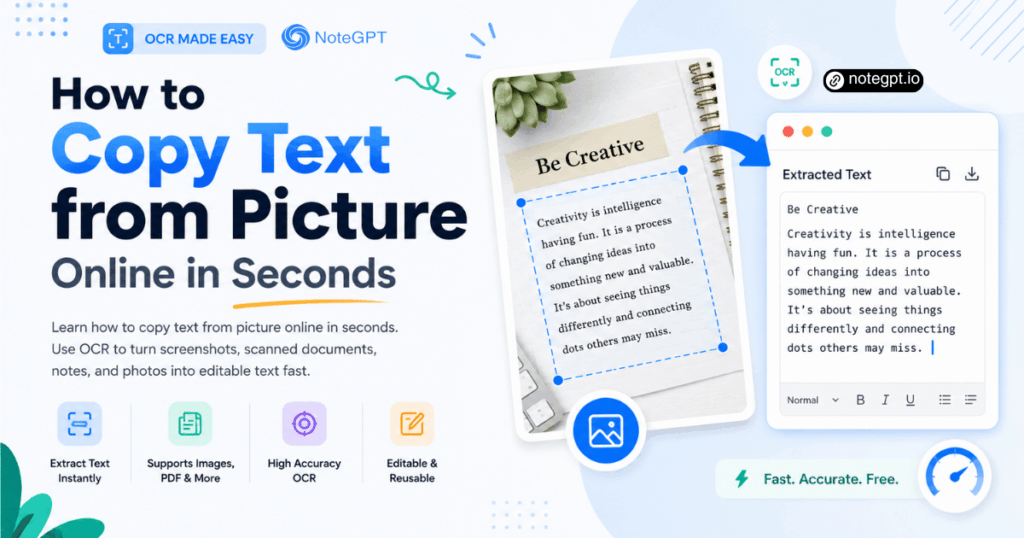
You do not always need a document scanner to run into copy-and-paste problems. Sometimes the text you want is inside a photo on your phone, a screenshot from social media, a restaurant menu, a street sign, a product label, a chat image, or a slide someone shared during a meeting. You can read it clearly, but you cannot select it. That is when you need a fast way to copy text from picture files and use it immediately.
Instead of retyping everything by hand, you can use OCR to turn picture-based words into editable text. With a browser-based tool like the Image to Text Converter, you can upload a picture, extract the text, and copy it into your notes, search bar, translator, spreadsheet, email, or AI assistant in seconds.
Why People Need to Copy Text from Pictures Fast
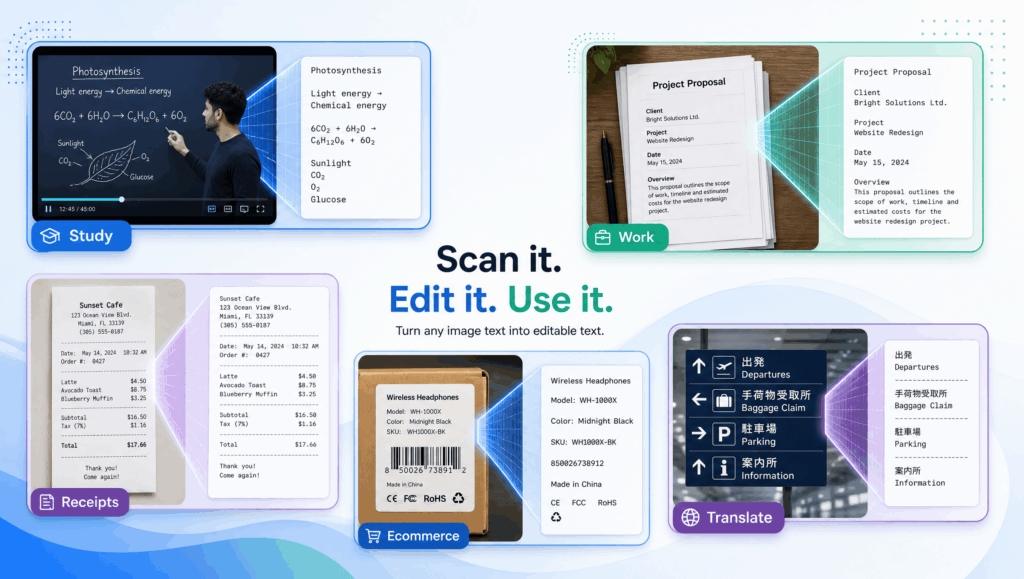
Text appears in more places than editable documents. It is in screenshots, posters, signs, packaging, menus, whiteboards, receipts, books, presentation slides, and images shared in group chats. When that text is locked inside a picture, even a simple task becomes annoying.
Maybe you want to search a phrase from a lecture slide. Maybe you need to translate a menu while traveling. Maybe a coworker sent a screenshot of an error message and you need to paste it into a support ticket. Maybe you took a photo of a product label and want to copy the ingredients into a comparison sheet. In each case, typing manually slows you down.
Copying text from a picture is not just about converting files. It is about turning visual information into something you can act on immediately. Once the words become editable, you can search, translate, summarize, rewrite, organize, or share them.
The Fastest Way to Copy Text from a Picture Online
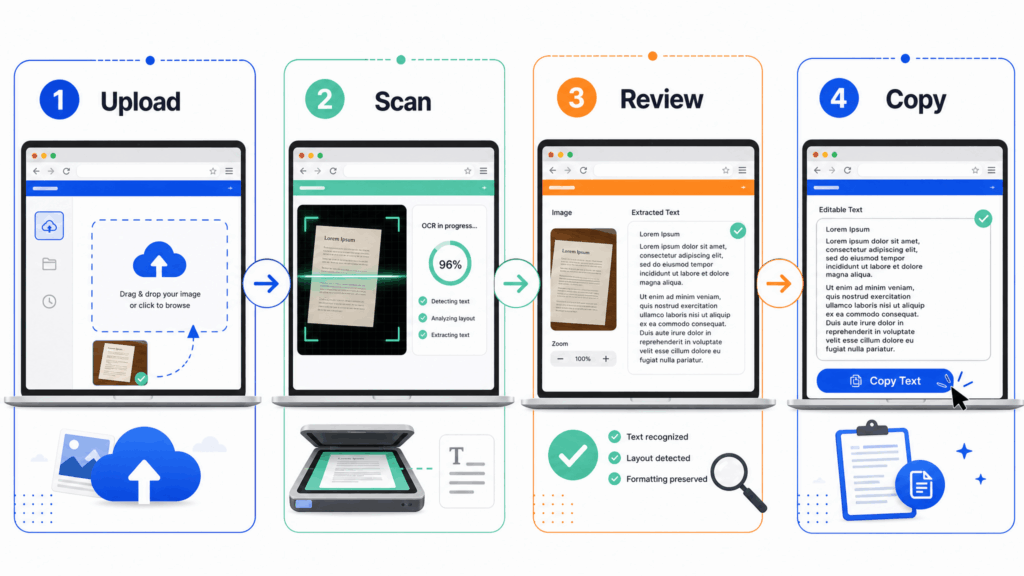
The quickest workflow is simple: upload the picture, let OCR detect the words, review the output, and copy the text. The whole process can take seconds when the image is clear.
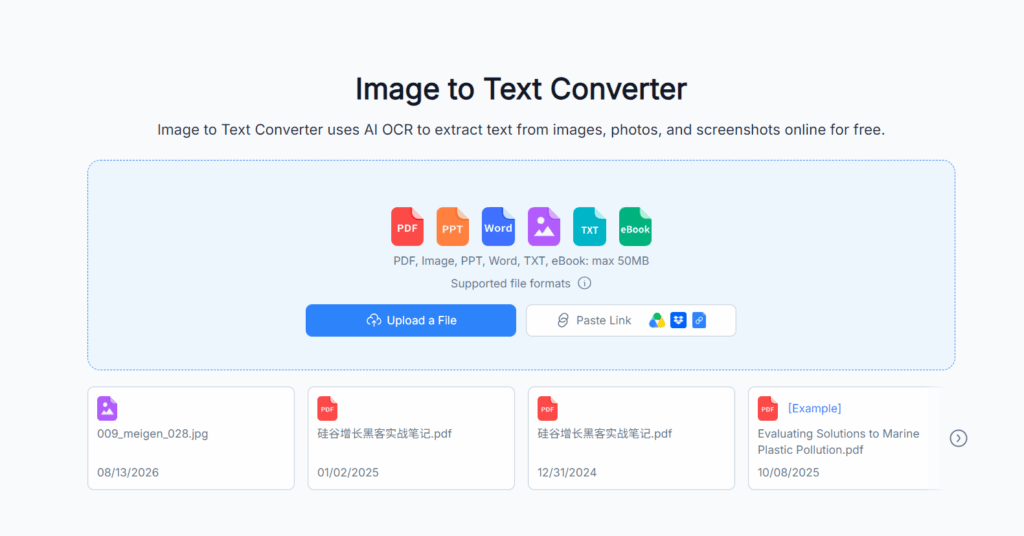
First, choose the picture that contains the text you want. This can be a screenshot, a phone photo, a scanned page, or an image downloaded from a website. Next, upload it to the NoteGPT Image to Text Converter. The OCR system reads the visible text and returns an editable result. Finally, copy the extracted text and paste it wherever you need it.
This approach is faster than opening a full document editing suite, installing a mobile app, or manually retyping text from the screen. It is especially useful when you only need one quick extraction and want to keep working without breaking your workflow.
Copy Text from Picture on Desktop
Desktop users often need to copy text from screenshots, scanned files, web images, research materials, and shared documents. For example, you may receive a screenshot of a software error, an image-based PDF page, a chart with labels, or a photo of a printed announcement.
On desktop, the browser is usually the easiest route. Save the picture or screenshot, upload it to an online OCR tool, copy the result, and paste it into your document, ticket, email, or spreadsheet. This is useful for office work because you can move information from images into the tools you already use.
Desktop OCR is also helpful for research. If you find a quote inside a scanned book page or an image-based article screenshot, you can convert it to text and then store it in your notes. Instead of typing line by line, you create a copyable draft instantly and only need to verify the details.
Copy Text from Picture on Mobile
Mobile is where picture text copying becomes even more practical. Your phone is often the device you use to capture real-world text: menus, signs, business cards, whiteboards, packaging, receipts, classroom notes, and posters.
If you take a picture of a sign and need to translate it, OCR can extract the words first. If you photograph a receipt, OCR can help you copy the vendor name, date, and amount. If you capture a slide during class, OCR can turn the visible text into study notes. If a friend sends a screenshot in a chat, OCR can help you copy the important part without typing on a small keyboard.
The key advantage on mobile is speed. Take or select the picture, open the online tool in your browser, upload the image, and copy the text. You do not need to install a dedicated app just to handle a quick task.
Copy Text from Picture in a Browser Without an App
A browser-based OCR workflow is useful because it works across devices. You can use it on a laptop, phone, tablet, or shared computer. That matters when you do not want to install extra software or when you are using a device that is not your own.
The Image to Text Converter is designed for this kind of simple online workflow. You do not need to understand OCR settings or configure a scanner. You only need a picture with readable text. Upload it, wait for the result, and copy the text.
This makes browser OCR ideal for casual and repeated daily tasks: copying a paragraph from a screenshot, grabbing a code from an image, extracting text from a label, or saving information from a photo before you forget it.
Everyday Picture Text Copying Scenarios
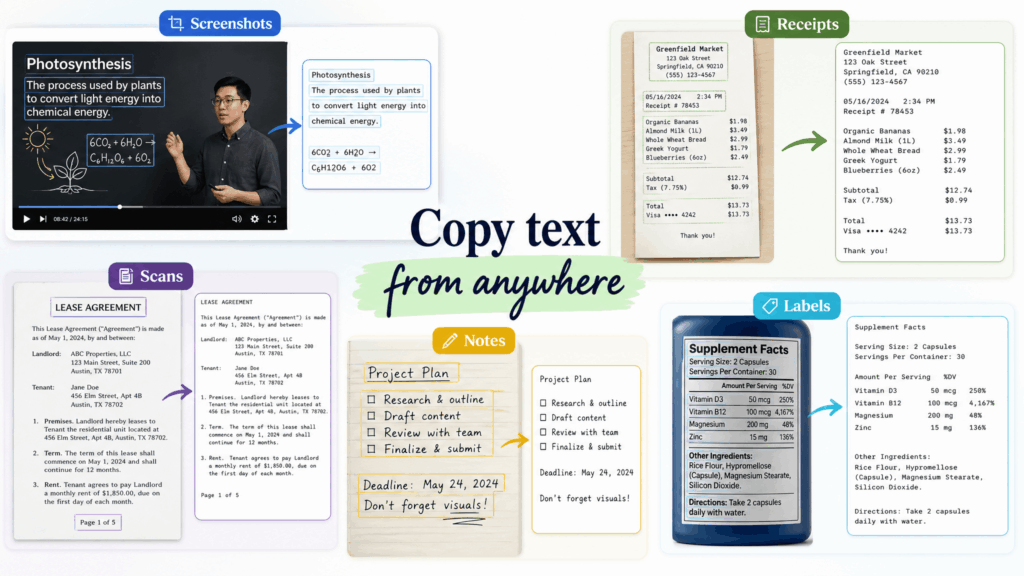
The best way to understand this workflow is through real situations.
Copy Text from a Screenshot
Screenshots are everywhere. People share tweets, posts, comments, slides, chats, error messages, app screens, and website snippets as images. If you need to reuse that text, OCR is faster than manual typing. You can copy the text into notes, quote it in an article, paste an error message into search, or save a conversation detail for later.
Copy Text from a Photo You Took
Photos often contain useful information that disappears from context if you do not save it quickly. A whiteboard after a meeting, a notice on a wall, a handwritten reminder, or a slide at an event can all become editable text. OCR helps turn those quick captures into usable notes.
Copy Text from a Menu or Sign
When traveling or reading foreign-language materials, you may want to copy text from a menu, street sign, museum label, train notice, or instruction board. After extracting the text, you can paste it into a translator or search engine. This use case is less about document formatting and more about instant understanding.
Copy Text from a Product Label
Product labels, ingredient lists, supplement facts, electronics specifications, and instruction cards often contain details people want to compare or save. OCR makes it easier to copy those details into a shopping list, comparison table, ecommerce listing, or product research note.
Copy Text from a Receipt
Receipts are small but full of useful information: store names, dates, prices, tax amounts, order numbers, and item lists. Copying that text can help with expense tracking, reimbursement, budgeting, or record keeping. OCR gives you a quick starting point, but you should always verify numbers before using them for finance.
What to Do After You Copy Text from a Picture
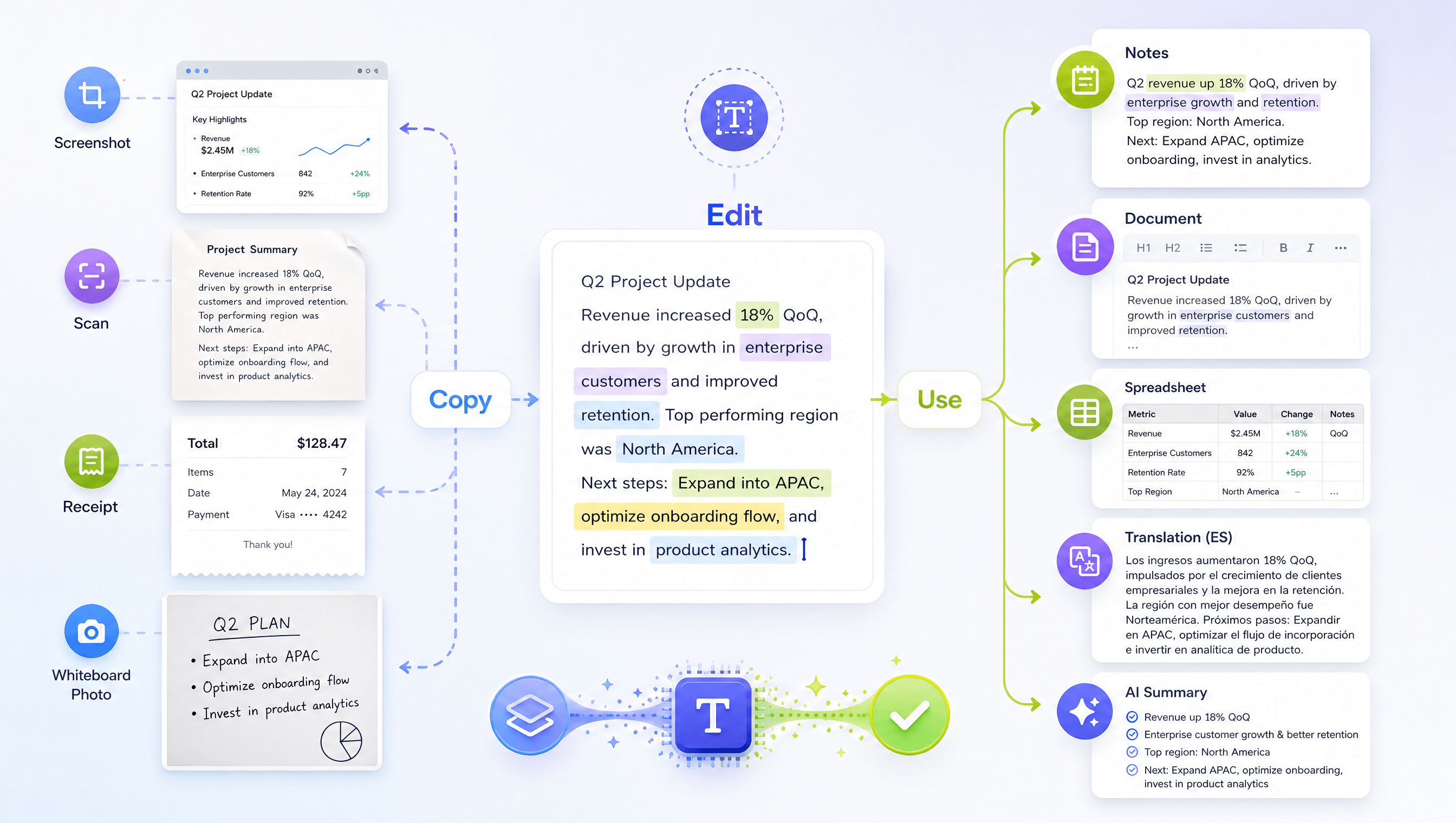
The real value comes after the text is copied. Once words move out of the picture, they become reusable.
You can paste copied text into notes to build a searchable knowledge base. Students can turn class screenshots into study material. Professionals can save meeting-board notes or document snippets. Researchers can collect quotes and references from scanned images.
You can paste the text into a search engine. This is useful for error messages, product names, addresses, book titles, event information, or unknown terms from an image. Instead of manually typing a long phrase, copy it from the picture and search directly.
You can paste it into a translator. This is one of the most practical uses for menus, signs, travel notices, manuals, and foreign-language screenshots. OCR gives the translator real text to work with instead of forcing you to type unfamiliar words.
You can paste it into a spreadsheet. Receipts, prices, product details, model numbers, and inventory information often become more useful when organized in rows and columns. OCR reduces the first layer of data entry.
You can paste it into an AI tool. After copying text from a picture, you can ask AI to summarize it, rewrite it, translate it, extract action items, create flashcards, or turn it into a checklist. In this workflow, OCR is the first step that makes visual information usable by other tools.
Tips for Copying Picture Text More Accurately
You do not need a perfect image, but better input usually creates better output.
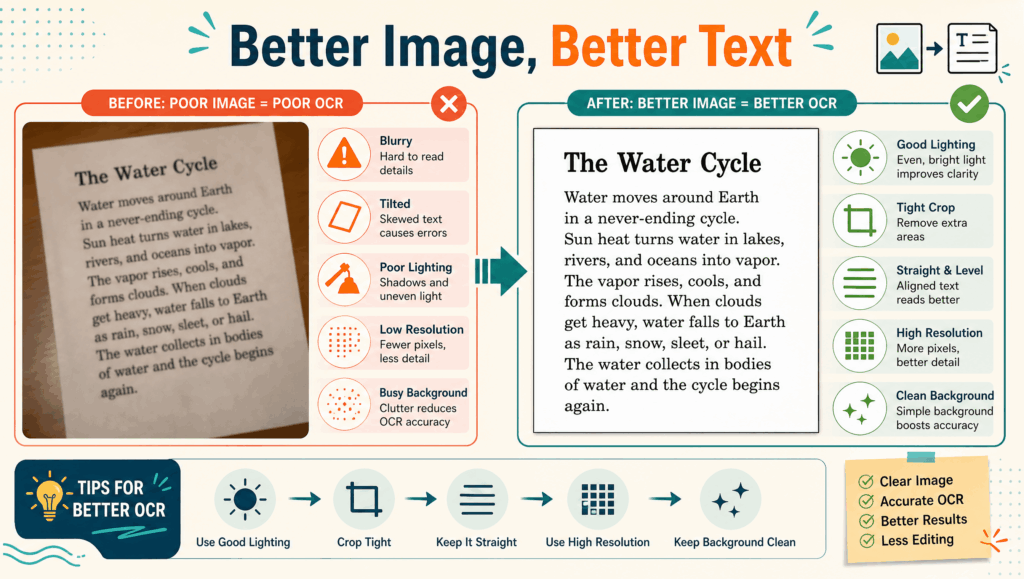
Use a clear picture whenever possible. If you are taking a new photo, move closer so the text is large enough. Keep the camera steady. Avoid heavy shadows, reflections, and motion blur. If you are using a screenshot, zoom in before capturing if the original text is very small.
Keep the text area simple. Cropping out unrelated background can help OCR focus on the right content. For example, if you only need text from a label, crop the image around the label. If you need text from a slide, remove unrelated browser or video controls.
Review important details before relying on the output. OCR is useful, but numbers, names, email addresses, dates, serial numbers, and prices deserve a second look. A single wrong character can matter when you are copying an invoice amount, a tracking number, or a product model.
Copy Text from Picture vs Taking Notes Manually
Manual typing is still fine when the text is very short. If you only need a two-word phrase, it may be faster to type it. Manual typing can also be better when the picture is extremely blurry, heavily stylized, or full of unclear handwriting.
OCR is better when the text is long, detailed, or easy to miscopy. A paragraph from a screenshot, a list from a label, a receipt with multiple numbers, or a slide with several bullet points is usually faster to process with OCR. Even if you spend a few seconds reviewing the result, you still save time compared with typing from scratch.
The best workflow is simple: use OCR first, then review. This gives you speed without giving up control.
Best Tool to Copy Text from Picture Online
If you need a quick browser-based way to copy text from a picture, try the Image to Text Converter. It is built for common image-to-text tasks such as screenshots, phone photos, scanned pages, labels, and notes.
The main benefit is convenience. You can use it online, avoid installation, and move from picture to editable text quickly. It is beginner-friendly because the workflow is straightforward: upload, extract, copy, and use. That makes it a practical option for students, office users, researchers, creators, and anyone who frequently needs to pull text out of images.
Final Thoughts
Learning how to copy text from picture files online is a practical everyday skill. It helps you move faster when information is stuck inside screenshots, photos, labels, signs, menus, receipts, and shared images. Instead of manually typing what you see, you can turn visual text into something editable and useful in seconds.
The best results come from clear pictures, simple backgrounds, and quick review. Once the text is copied, you can paste it into notes, search, translation tools, spreadsheets, documents, or AI workflows. Start with the Image to Text Converter when you need a fast way to copy text from pictures online without installing extra software.