

Let me ask you something. Have you ever spent hours editing a video, only to ruin it with a voiceover that sounds like a robot reading a dictionary?
Yeah, me too. It hurts.
You work so hard on the visuals, the pacing, the message. Then you hit play, and that flat, lifeless voice comes out. Suddenly, your amazing content feels cheap. People click away. Your heart sinks.
I’ve been there more times than I want to admit.
But here’s the good news: 2026 is different. The days of robotic voiceovers are fading fast. Today, you can make AI voice sound human—like, actually human—without hiring a voice actor or spending hours in a recording booth.
The tool that changed everything for me? NoteGPT Text to Speech.
I know, I know. You’ve probably heard people say “this tool is amazing” a hundred times. But stick with me. I’m going to show you exactly why this one hits different, how to use it like a pro, and why custom pauses and sound effects are the secret weapons you didn’t know you needed.
Let’s get into it.
Why NoteGPT Text to Speech Stands Out in 2026
If you’ve been around the content world for a while, you’ve watched AI voice technology evolve. Remember those early days? The voices sounded like they were from a 1980s sci-fi movie. Every word was the same volume, same speed, same tone. Zero emotion. Zero personality.
Fast forward to today, and things have changed. A lot.
The Shift from Robotic to Human-Like AI Voice
Here’s what happened: people got picky.
Audiences today have heard thousands of voiceovers. They know what sounds fake. The moment they hear something that feels robotic, their brain flags it. They lose trust. They stop listening.
I noticed this with my own YouTube channel a couple years back. I was using a basic text to speech tool for my intro sequences. Nothing fancy, just a quick voiceover to set up the video. One day, a viewer commented: “Great video, but the robot voice at the start almost made me click off.”
Ouch.
That comment stuck with me. I realized that even small things—like a few seconds of robotic audio—can push people away. So I started digging into better options. That’s when I found tools that actually focus on sounding human.
The shift from robotic to human-like AI voice isn’t just a trend. It’s a necessity. If you want people to stick around, your audio needs to sound like a real person talking to them, not a machine spitting out words.
What Makes NoteGPT Text to Speech Different
So what’s the secret? Why does NoteGPT Text to Speech stand out in a sea of options?
It comes down to control.
Most text to speech notegpt competitors give you a voice and say “good luck.” You type your words, hit generate, and that’s it. You get what you get. If the pacing is off, too bad. If the voice doesn’t emphasize the right words, tough luck.
NoteGPT takes a different approach. They hand you the keys.
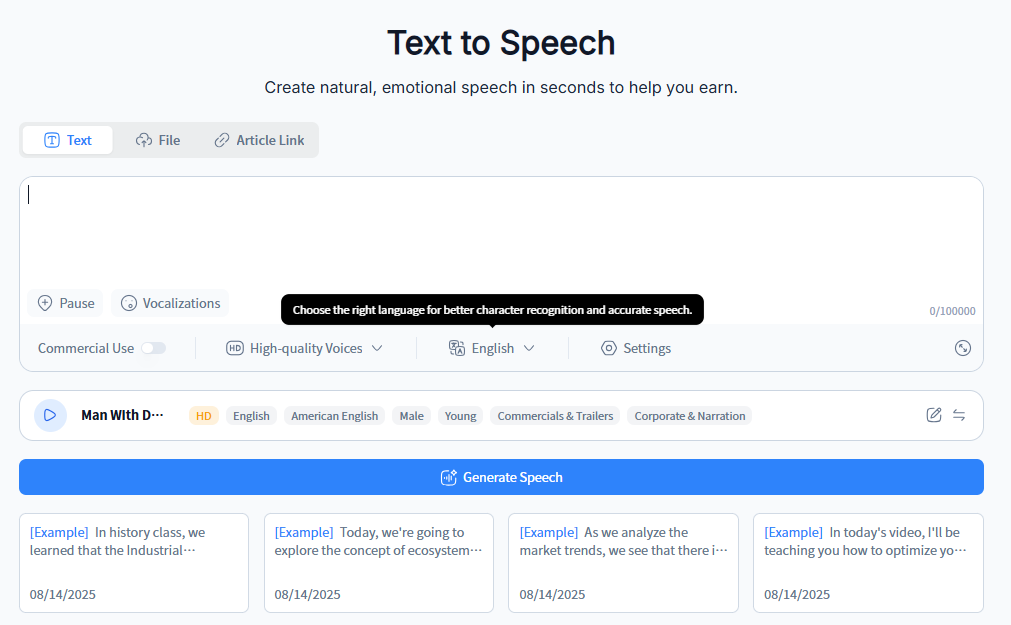
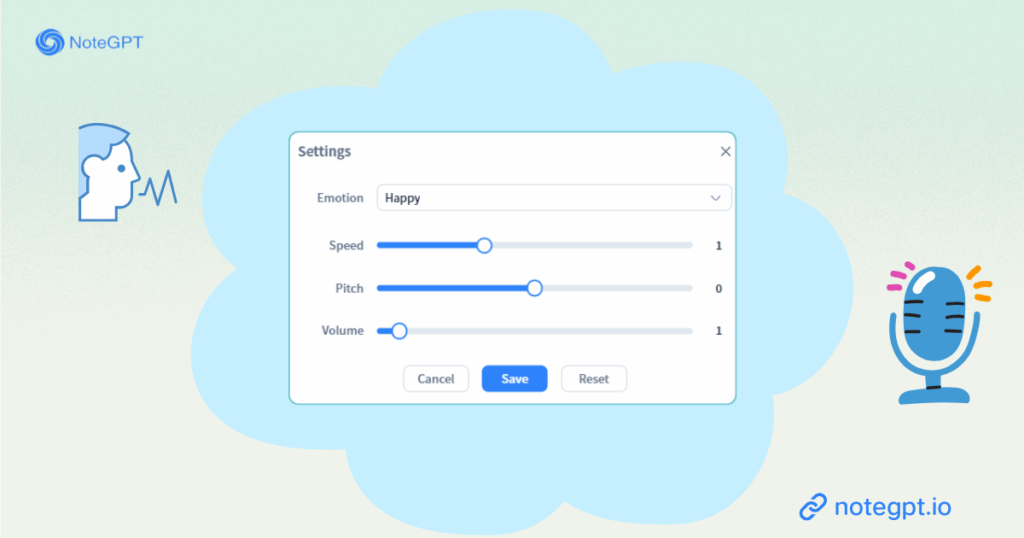
You want to add a dramatic pause before your big reveal? Go for it. You want to layer in a subtle sound effect to highlight a key point? Easy. You want the voice to sound excited, calm, or professional? You can tweak it until it feels right.
I remember using this for a client project last fall. A small business owner needed a promotional video for their new product. They didn’t have the budget for a voice actor, but they also didn’t want the video to sound cheap.
I used NoteGPT Text to Speech and spent maybe ten minutes adjusting pauses and adding a couple sound effects. When I sent the final video, the client emailed back: “Wait, you didn’t hire someone to do this? It sounds like a real person.”
That’s the power of having the right tools and knowing how to use them.
Key Features of NoteGPT Text to Speech
Let’s break down the features that actually matter. Because anyone can list a bunch of fancy terms. But I want to show you what these features do for you in real life.
Custom Pauses for Natural Rhythm
Here’s something most people don’t think about: humans don’t speak in straight lines.
When you’re talking to a friend, you pause. You hesitate. You take a breath when you’re thinking. You leave a little space after a joke so people can laugh. You let important words hang in the air for a second.
A robotic voice does none of that. It reads your text like a conveyor belt. Word after word after word. No breaks. No rhythm. No soul.
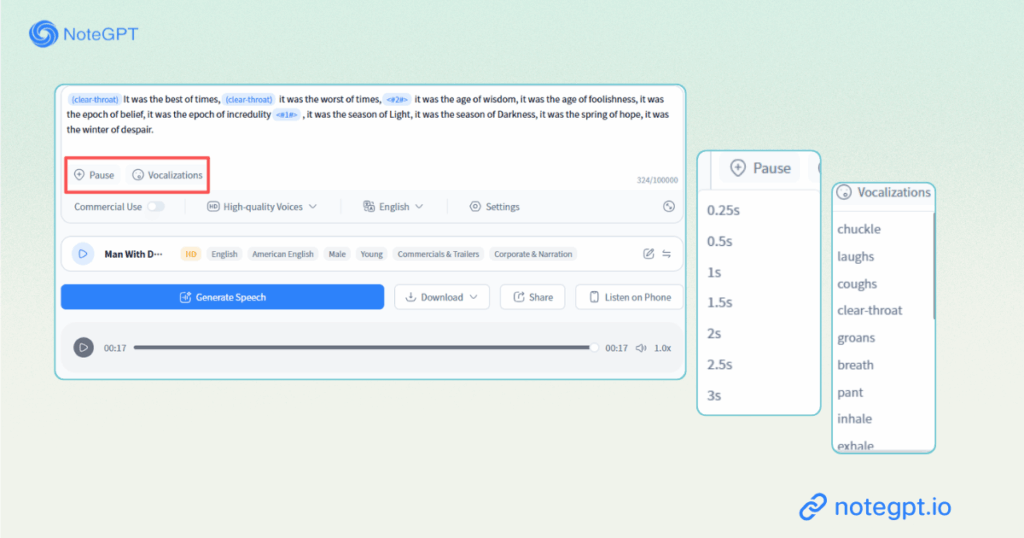
NoteGPT Text to Speech lets you fix that. You can insert custom pauses anywhere you want. Short pauses. Long pauses. Pauses that build suspense. Pauses that let your listener catch their breath.
I used this recently for a storytelling video. The script had a moment where the main character discovers something surprising. In the text, it was just a sentence: “And then she opened the door and saw it.”
But by adding a two-second pause after “opened the door,” I created tension. The listener had a moment to wonder what “it” was. Then the voice continued, and the payoff hit harder.
That tiny change made the whole sequence feel cinematic. And it took about five seconds to do.
Sound Effects for Immersive Voiceovers
Okay, custom pauses are great. But sound effects? That’s where things get fun.
Think about your favorite movie or video game. The voice acting is important, sure. But what really pulls you in? It’s the sound design. The subtle whoosh when something moves. The soft chime when a new idea appears. The ambient background that sets the mood.
NoteGPT Text to Speech brings this into your voiceovers. You can add sound effects directly to your audio without messing around in a separate editing program.
I worked with a teacher last spring who was creating audio lessons for her students. She was worried the kids would get bored just listening to a voice talk for twenty minutes. So we added soft bell sounds between sections. Nothing loud or distracting. Just a gentle cue that said “okay, new topic coming up.”
She told me later that her students started paying more attention. They knew when a new section was starting. The audio felt like a guided experience instead of just a lecture.
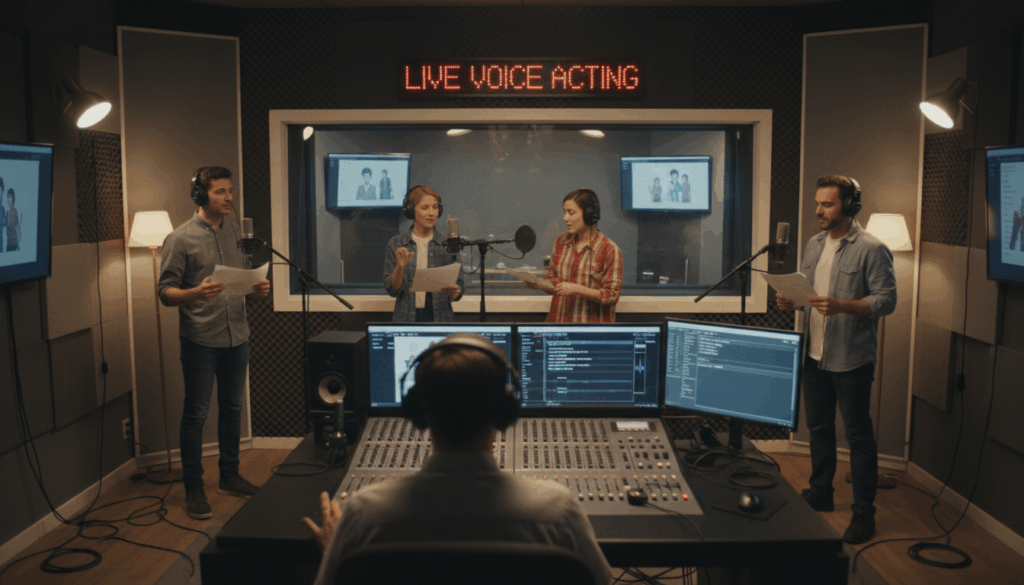
Another example: I helped a friend create a trailer for his podcast. We used a dramatic pause, then added a low rumble sound effect before the big hook. People who heard it said it sounded like a professional radio promo. All from a free AI text to speech tool.
High-Quality AI Text to Speech Engine
Of course, all the pauses and sound effects in the world won’t save you if the voice itself sounds bad.
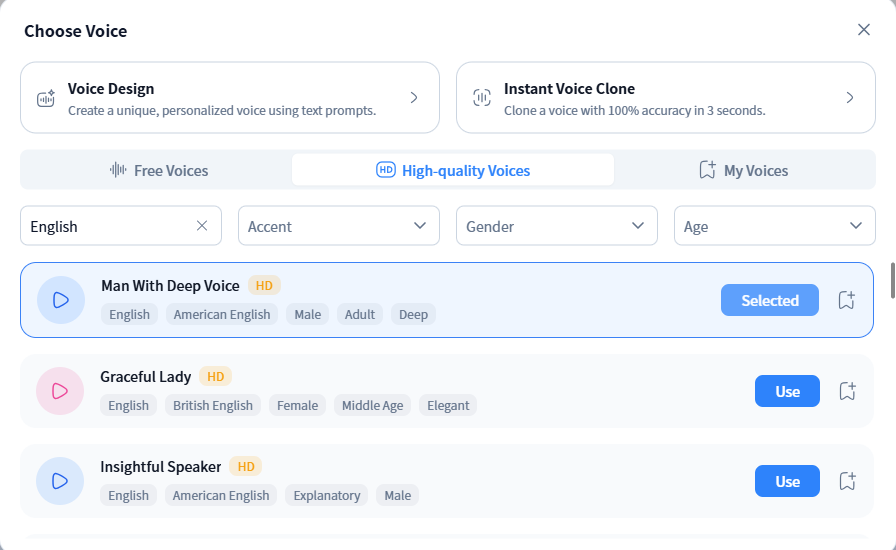
The engine behind NoteGPT Text to Speech is what makes everything else work. The voices are clear, natural, and surprisingly expressive. Punctuation matters. When you use a question mark, the voice actually sounds like it’s asking something. When you use an exclamation point, you hear genuine excitement.
I’ve tested a lot of AI text to speech tools over the years. Some sound decent in short clips but fall apart in longer passages. Others sound fine in English but struggle with names or technical terms.
NoteGPT handles both well. I’ve used it for everything from casual YouTube intros to technical software tutorials, and it rarely messes up pronunciation. When it does, you can usually fix it by tweaking the spelling or adding a pause to reset the flow.
Applications of AI Text to Speech with NoteGPT
So where can you actually use this? Pretty much anywhere you need a voice.
Creating Engaging YouTube Videos
YouTube is a battle for attention. The first few seconds decide everything.
If your video opens with a robotic voice, viewers will leave. I’m not guessing—YouTube analytics will show you. The drop-off happens fast. People hear that flat, unnatural tone, and their brain says “nope.”
With text to speech notegpt, you can open your videos with a voice that actually sounds like a person. Someone friendly. Someone you’d want to listen to.
I know a creator who runs a faceless YouTube channel—no camera, just voiceover and visuals. He used to struggle with retention. People would click on his videos but leave within the first minute. He switched to NoteGPT, started adding custom pauses to match his storytelling rhythm, and his average view duration jumped by almost 40%.
That’s not magic. That’s just better audio.
Enhancing E-Learning and Tutorials
If you’re creating educational content, clarity is everything. But so is engagement. You can have the most accurate information in the world, but if your delivery puts people to sleep, they won’t learn anything.
E-learning students often listen to hours of audio. If the voice is monotonous, their brains check out. They start scrolling their phone. They “watch” the whole thing but remember nothing.
Using NoteGPT Text to Speech, you can break up the monotony. Add pauses between complex ideas so students have time to absorb. Use sound effects to mark key takeaways. Switch up the pacing so the audio feels dynamic.
A friend of mine teaches online coding courses. He used to record all his own voiceovers, but it took forever. Now he uses NoteGPT for the basic walkthroughs and saves his own voice for the complex stuff. He told me his students actually prefer the AI voice for routine lessons because it’s so consistent. No background noise, no vocal fatigue, just clean, clear instruction.
Producing Marketing and Promotional Content
Marketing is emotional. Even B2B marketing. People buy from people they trust.
If your ad or promotional video sounds robotic, people will assume your product feels robotic too. That’s just how our brains work. The voice represents the brand.
I helped a startup launch their first product video last year. They had a tiny budget but big ambitions. We used NoteGPT Text to Speech to create the voiceover, added custom pauses to build anticipation, and layered in some subtle sound effects to highlight key benefits.
The video performed better than they expected. The founder told me people commented specifically on how professional the audio sounded. A few people even asked who the voice actor was. When they found out it was AI, they were blown away.
What Sets NoteGPT Text to Speech Apart
You might be thinking: “Okay, this sounds good, but aren’t there tons of text to speech tools out there?”
Yes. Absolutely. I’ve tried most of them.
But here’s what I’ve learned: most of them fall into two camps, and neither camp is great.
Comparison with Other Text to Speech Tools
The first camp is the basic text to speech free tools. You’ve probably seen them. They’re everywhere. You paste your text, hit a button, and a voice reads it back.
These are fine if you just need a quick voice for a personal project. But for anything professional? They fall short. The voices sound robotic. The pacing is awkward. You have zero control over pauses or emphasis. What you hear is what you get, and what you get usually sounds like a GPS from 2010.
The second camp is the high-end professional tools. These sound better, sure. But they’re complicated. You need to learn a whole new system just to add a simple pause. Some of them require you to edit audio in a separate program. Others have interfaces designed by engineers who clearly never asked a normal person to use their product.
NoteGPT Text to Speech sits right in the middle. You get the quality of a professional tool without the headache. You don’t need to be an audio engineer. You don’t need to watch hours of tutorials. If you can type, you can create a natural-sounding voiceover in minutes.
Why Custom Pauses and Sound Effects Matter
I want to spend a little more time on this because it’s genuinely the most underrated part of making AI voice sound human.
When you listen to someone talk, your brain is constantly picking up on subtle cues. A pause tells your brain: “Hey, what just happened? Let me process that.” A longer pause tells your brain: “Something important is coming. Pay attention.”
Without those cues, the audio feels like a firehose. Information just sprays at you. Your brain gets overwhelmed, then bored, then distracted.
With pauses, the audio breathes. It gives you moments to think, to feel, to anticipate. It’s the difference between someone reading a script at you and someone telling you a story.
Sound effects add another layer. They’re like punctuation for your ears. A soft chime says “new section.” A gentle whoosh says “here comes something exciting.” A subtle ambient track says “settle in, this is going to take a minute.”
When you combine custom pauses with well-placed sound effects, your audio stops being just a voiceover. It becomes an experience. And experiences are what people remember.
Tips for Achieving the Most Natural AI Voice
Let’s get practical. Here’s how you actually do this.
Adjusting Pause Durations for Realism
Here’s a trick I learned after making a lot of bad voiceovers: don’t use the same pause length for everything.
If every pause in your audio is exactly one second, it sounds robotic. People pause for different lengths depending on what they’re saying. A pause before a punchline might be longer. A pause between two short phrases might be barely a breath.
When you’re using NoteGPT Text to Speech, experiment. Put a longer pause before a key point to build anticipation. Use shorter pauses to keep the flow moving when you’re explaining something straightforward.
I usually listen to the audio once with no pauses at all. That gives me a baseline. Then I go back and add pauses where they feel natural. Sometimes I even read the script out loud to myself and notice where I naturally pause. Then I replicate that in the tool.
It takes a little trial and error at first, but after a few projects, you’ll develop a feel for it. Your audio will start sounding way more natural, and people won’t even realize it’s AI.
Combining Sound Effects with Voice Modulation
Sound effects are great, but restraint is key.
The goal is to enhance the voice, not drown it out. Think of sound effects like salt. A little bit makes the dish better. Too much ruins it.
For a calm, educational tutorial, a soft chime between sections works well. It’s noticeable enough to signal a transition but not distracting. For an exciting product launch, a subtle whoosh or pop can add energy without overwhelming the listener.
Also, pay attention to volume. You want the sound effect to sit under the voice, not compete with it. If your listener has to strain to hear the voice because the sound effect is too loud, you’ve lost them.
I made this mistake early on. I added a dramatic sound effect to a video intro, and when I played it back, I realized the sound effect was almost as loud as the voice. It sounded messy and amateur. I turned it down by about 50%, and suddenly everything felt balanced.
Text to Speech Free vs. Premium: What You Need to Know
One of the best things about NoteGPT Text to Speech is the free tier. You don’t have to commit money just to see if it works for you.
Unlimited Free Access for Basic Needs
If you’re just starting out, or if you only need voiceovers occasionally, the free version is plenty.
You get access to high-quality voices. You can add custom pauses. You get basic sound effects. I’ve used the free version for several personal projects—short videos, quick presentations, even a funny voiceover for a friend’s birthday video—and it never felt limited.
No watermarks. No “upgrade now” popups every five seconds. Just a clean, functional tool that lets you create.
Advanced Features for Professional Projects
If you’re creating content professionally—YouTube videos, online courses, marketing materials—the premium features are worth looking at.
You get more voice options. You can generate longer audio files. You get access to more advanced sound effects and finer control over pause lengths.
Here’s how I think about it: if you’re making money from your content, investing in better audio is one of the highest-return moves you can make. Better audio means better retention. Better retention means more views, more sales, more growth.
A cheap voiceover makes your whole brand feel cheap. A great voiceover makes people trust you. And trust is what turns viewers into customers.
Future of AI Text to Speech with NoteGPT
This space moves fast. What’s cutting-edge today might be standard next year. But from what I’ve seen, NoteGPT is staying ahead of the curve.
Upcoming Features and Enhancements
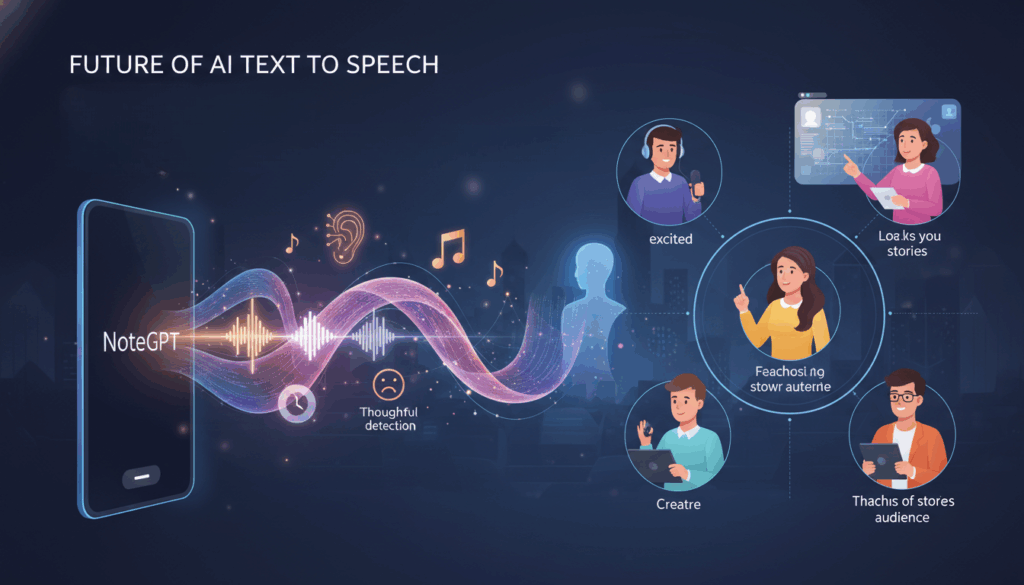
I’ve heard they’re working on even more natural voice options—voices that can express different emotions more fluidly. Imagine being able to say “make this sound excited” or “make this sound thoughtful,” and the AI just handles it.
They’re also improving the pause detection feature. Eventually, the tool might be able to suggest where to add pauses based on the natural rhythm of your text. That’s going to save creators even more time.
The Evolution of Human-Like Voice Technology
The line between synthetic and human voice is getting blurrier every year.
But here’s what I think: the future isn’t about AI replacing human voices. It’s about giving creators better tools so they can focus on what actually matters—telling great stories, teaching valuable skills, connecting with their audience.
NoteGPT Text to Speech is part of that future. By giving you control over pauses and sound effects, it’s already helping you create voiceovers that feel human. Not because the AI is perfect, but because you’re in the driver’s seat.
Conclusion: Start Using NoteGPT Text to Speech Today
Tired of robotic voiceovers? You don’t have to settle—AI voice can sound human with a text to speech tool that lets you control pauses and pacing.
NoteGPT Text to Speech does that. This free ai text to speech tool creates natural, professional voiceovers for your videos, courses, or marketing content.